
Direct Answer
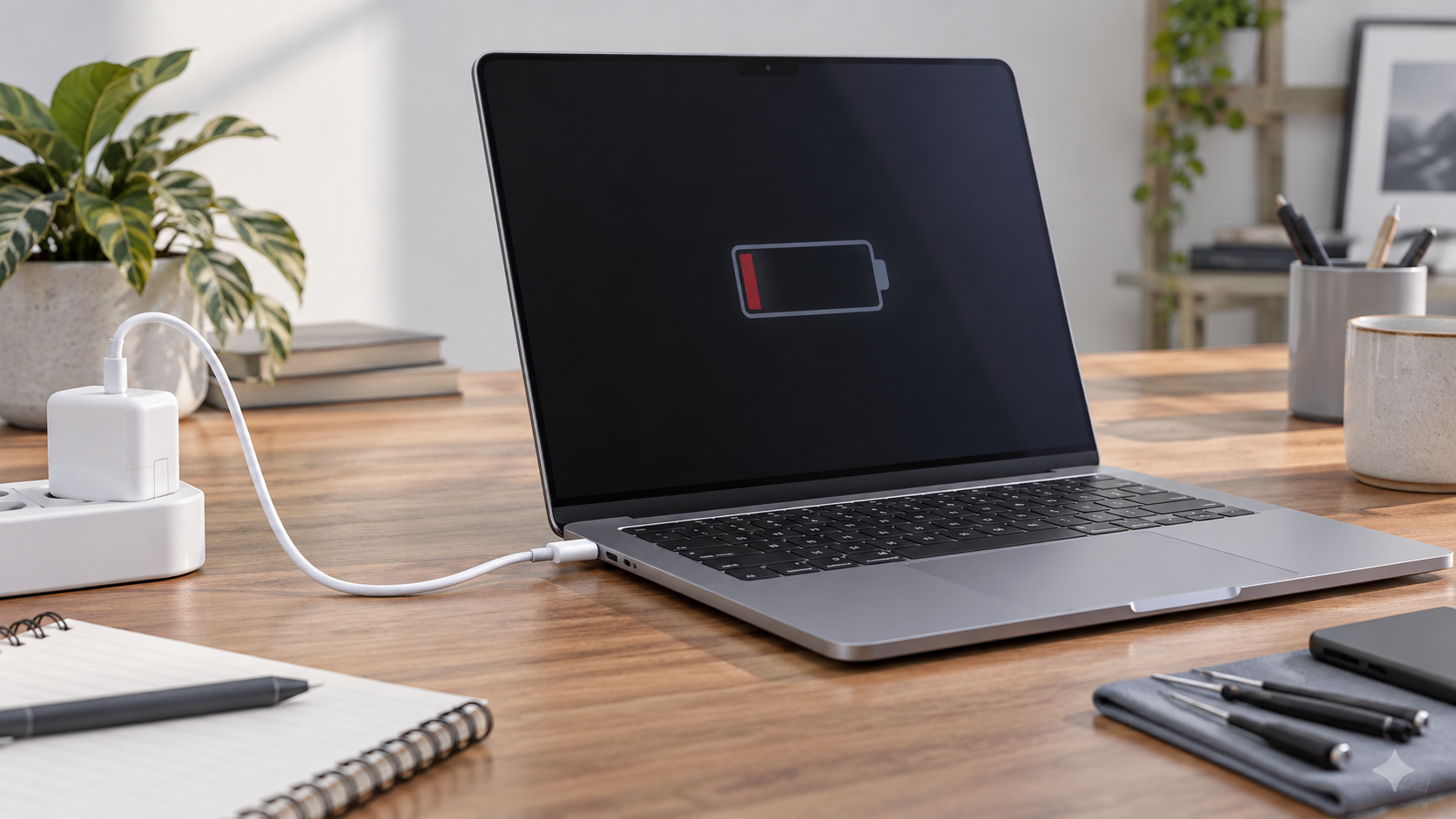
Start with the charging chain, not the logic board. A MacBook may refuse to charge because the outlet has no power, the adapter is underpowered, the cable carries data but not enough charging power, macOS has paused charging, the battery needs service, a USB-C or MagSafe connection is damaged, or a board-level power circuit has failed. Test a known-good, correctly rated adapter and charging cable, inspect the ports without inserting tools, try every charging-capable port and check Battery settings. If the Mac charges only at an angle, only through one port, shuts off when unplugged or remains undetected with known-good equipment, it needs diagnosis rather than more random accessories.
Quick Answer
| What you observe | More likely starting point | Useful next check |
|---|---|---|
| “Charging On Hold” or a charge limit | Battery-health feature, not necessarily a fault | Review Battery settings and choose “Charge to Full Now” only if needed |
| “Slow Charger” | Adapter, cable, dock or display supplies too little power | Connect a correctly rated adapter and charging cable directly |
| Works with another cable or adapter | Original cable or adapter | Stop using damaged equipment and replace or evaluate it |
| One USB-C port works, another does not | Port, USB-C board or internal connection | Stop forcing the failed port; arrange a port diagnosis |
| Runs on power but dies when unplugged | Battery or battery connection | Check Battery Health and run Apple Diagnostics |
| No charging on any port with known-good power gear | Battery, port circuitry or logic board | Professional electrical diagnosis |
| Charging changed after a spill | Moisture, residue or corrosion | Shut down, disconnect power and avoid repeated tests |
First decide whether it is actually failing to charge
The battery icon can show several states that look similar but mean different things. A Mac may be connected to power while macOS intentionally pauses charging. Apple’s current charging guide describes “Charging On Hold” for Optimized Battery Charging and a separate charge-limit status on supported software. Those states are not the same as a broken charger.
“Battery Is Not Charging” can also appear when the power source supplies enough energy to run the Mac but not enough to run it and refill the battery at the same time. A small phone charger, low-power monitor, dock or unsuitable cable can create that situation. Heavy work such as gaming or video export can further increase demand. If charging resumes when the Mac is idle or connected directly to its correct adapter, that points away from a dead port or logic board.
Record the exact wording in the battery menu before changing anything. “Slow Charger,” “Charging On Hold,” “Service Recommended” and no power-adapter detection are different clues.
Test the outlet, adapter and cable first
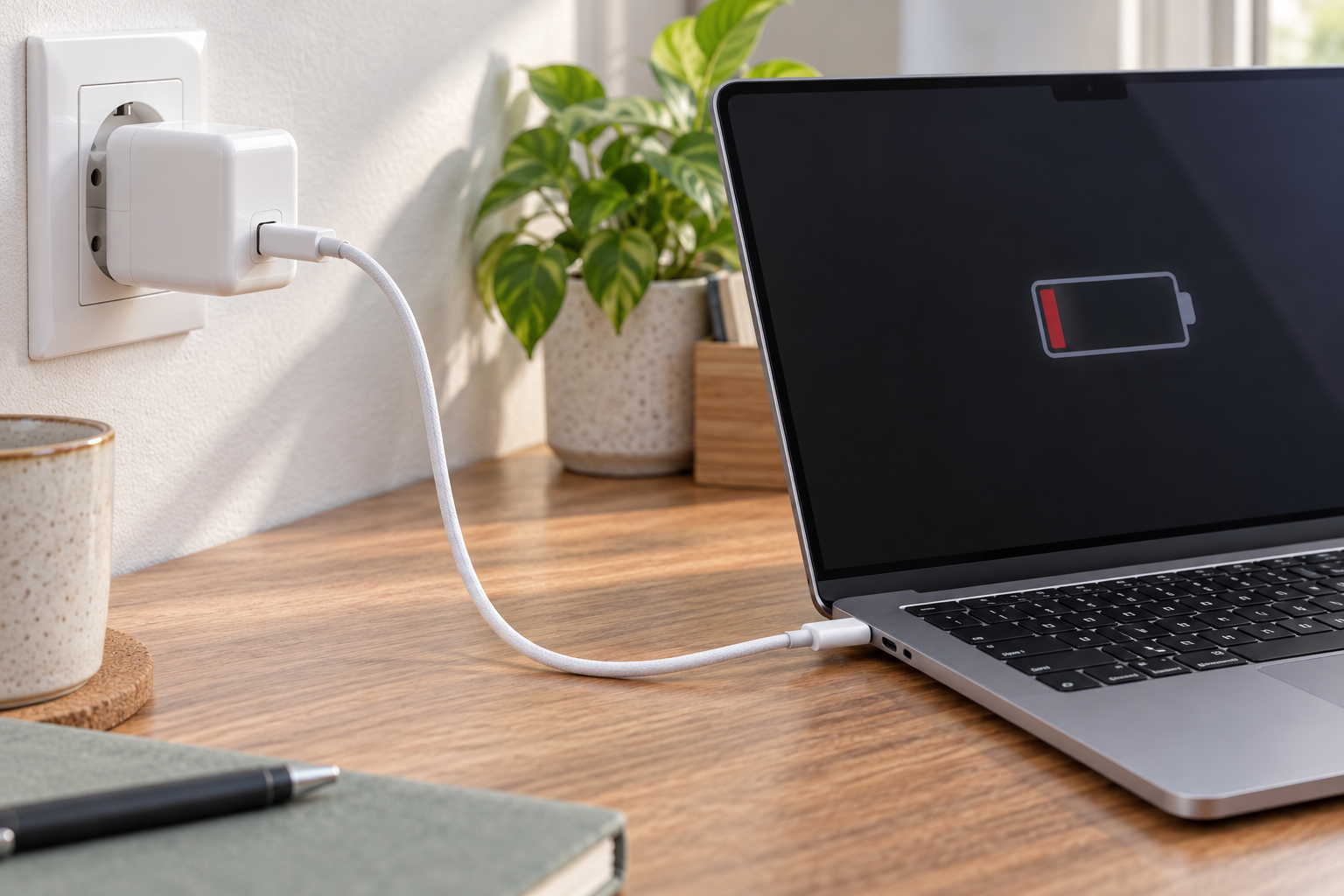
This stage is safe and often decisive.
- Save your work and disconnect nonessential hubs, drives and accessories.
- Confirm the wall outlet with a simple known-good device.
- Connect the Mac directly to a compatible power adapter rather than through a dock or monitor.
- Use a charging cable known to support the power required by that Mac. A USB-C connector shape alone does not prove that the cable is suitable.
- Inspect the cable, plugs and adapter. Stop using them if the insulation is damaged, pins are bent or discoloured, or a connection becomes unusually hot.
- If practical, test a second known-good adapter and cable of appropriate wattage.
Apple specifically notes that some USB-C cables transfer data but do not charge a Mac, and recommends testing another charging-capable cable. Its USB-C adapter troubleshooting steps also cover the outlet, cable, port debris, software updates and power-adapter ventilation.
Do not buy several inexpensive chargers as a diagnostic method. One verified, compatible charging setup tells you more than a drawer of unknown cables. If you do not know the MacBook model or required adapter, identify the model before comparing wattage.
What the result means
If a different cable fixes the problem, the Mac itself may not need repair. If a different adapter fixes it while the original cable works, the adapter is the stronger suspect. If the same known-good combination works only at one desk or one outlet, investigate the power source. If nothing changes, continue through the Mac-side checks.
Check every charging-capable port carefully
Many USB-C MacBooks can charge through more than one port; models with MagSafe may also accept USB-C charging. Use the known-good setup to test each supported input one at a time. Do not connect multiple chargers in an attempt to add their wattage. Apple says the Mac uses one power source at a time.
Look into each port under good light. Lint or debris can prevent a plug from seating fully, but a user should not scrape the contacts with a pin, knife or other metal object. Do not pour solvent into the port. If a connector must be pushed sideways, held at an angle or repeatedly reinserted to charge, stop. Continued leverage can turn a worn connection into physical damage.
A one-port-only failure does not by itself prove that the logic board must be replaced. Apple’s repair manuals list separate USB-C boards on some models and different input/output arrangements on others. The exact MacBook model determines whether the likely repair is a port board, cable, connector or component on the main board.
USB-C port clues
A port-side problem becomes more plausible when:
- the same charger and cable work in another port on the Mac;
- the plug is visibly loose or will not seat normally;
- both charging and data accessories fail on one port;
- the failure began after a pull, drop or bent connector;
- charging disconnects when the untouched Mac or cable moves slightly.
Those clues justify inspection, but they do not distinguish a mechanically damaged port from its internal board or cable.
Check Battery settings before blaming the battery
Open Apple menu > System Settings > Battery and look at Battery Health. Apple defines “Normal” as a battery functioning normally. “Service Recommended” means that its ability to hold charge is lower than when new or that it is not functioning normally. Apple’s battery-condition guide also cautions that you may or may not notice a behavioural change.
A worn battery usually shows itself through reduced runtime, unexpected percentage changes, shutdowns away from power or a service message. It can also be part of a no-charge complaint. However, low maximum capacity and failure to recognize any charger are not the same problem. Replacing the battery is a poor first guess when the Mac does not detect known-good power on any input.
If the enclosure is deforming, the bottom case no longer sits flat or the trackpad is lifting, stop using and charging the Mac and arrange service. Do not press the case closed or puncture a battery.
Restart, update and use the model-correct reset
If the Mac still runs, restart it and install current macOS updates. Apple notes that software or firmware updates can improve communication with a power adapter. A shutdown followed by closing the display for about 30 seconds is also part of Apple’s current charging troubleshooting.
Avoid generic advice to “reset the SMC” without checking the model. Apple silicon Macs manage this differently; a normal restart is the relevant first step. An SMC reset applies to certain Intel-based Macs and the key sequence varies by generation. Use Apple’s model-specific instructions rather than copying a random keyboard combination.
Then run Apple Diagnostics if the Mac can reach it. Save any reference code. Diagnostics may point to a battery or other hardware area, but a clean result does not rule out every intermittent connection or board-level charging fault.
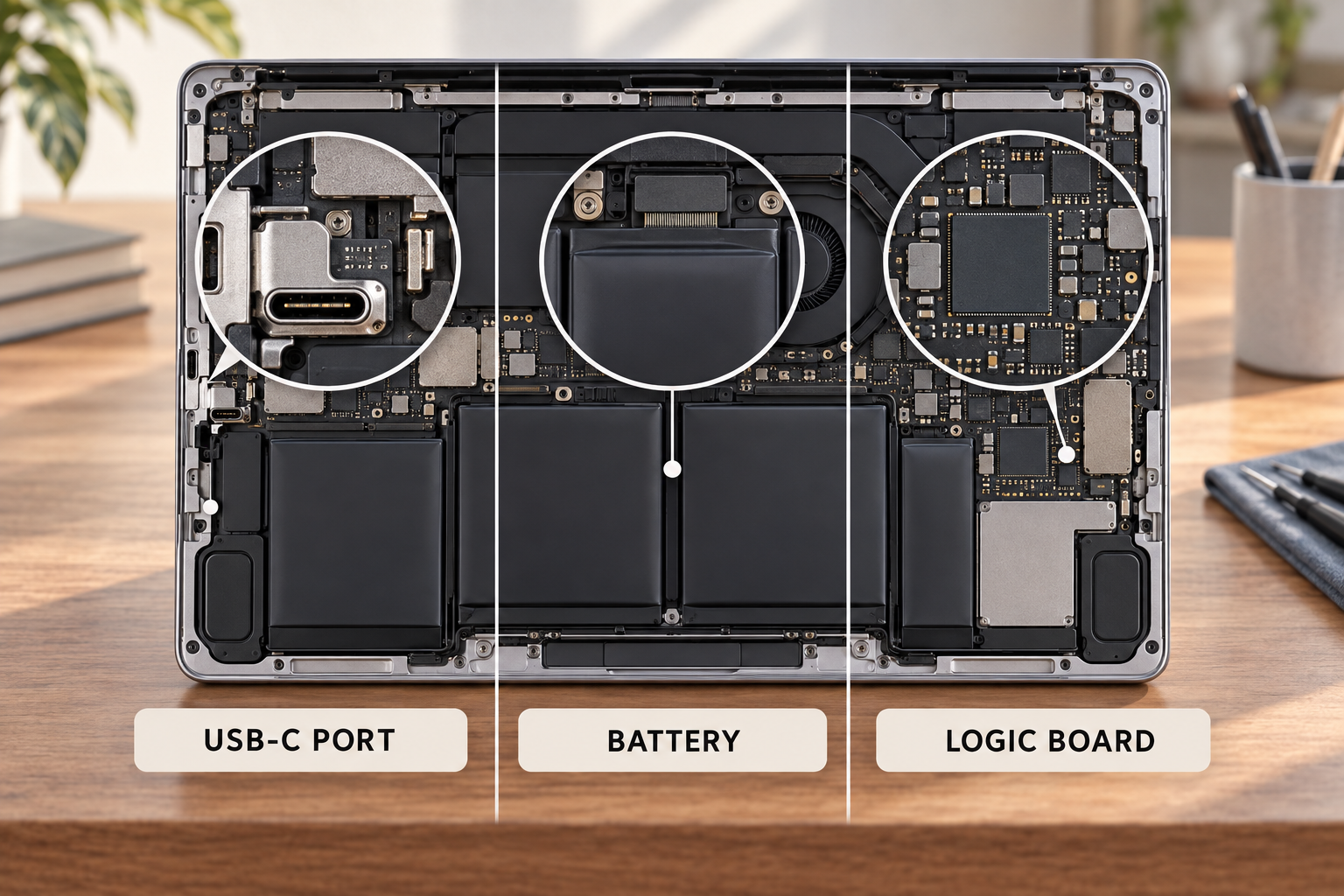
How to tell battery, port and logic-board symptoms apart
Battery is the stronger suspect
The Mac recognizes the adapter and operates normally on external power, but runtime is very short, the percentage behaves erratically, the computer shuts down when unplugged or Battery Health reports service is recommended. A battery connection or charging-control issue can still imitate these symptoms, so diagnosis is appropriate before ordering a part.
Port or port-board damage is the stronger suspect
One physical input consistently fails while another works with the same known-good equipment. The connector is loose, damaged or linked to an impact. Both data and charging functions may be affected. Depending on the model, the port can be part of a replaceable USB-C board or connected differently to the logic board.
Logic-board diagnosis is justified
The adapter and cable are verified, supported ports have been tested, Battery settings and basic software steps do not explain the state, and the Mac still cannot detect, negotiate or route charging power correctly. Liquid exposure, a short, corrosion or a damaged charging circuit can all lead here. “Logic board” is still not a complete finding. The failed section must be located before deciding between microsoldering and whole-board replacement.
What not to do
- Do not force or wiggle a connector to keep the Mac charging.
- Do not use metal tools or liquid cleaner inside USB-C or MagSafe ports.
- Do not keep testing power after a spill or liquid-detection alert.
- Do not open a MacBook merely to disconnect and reconnect the battery unless you have the correct model-specific procedure and battery-safety equipment.
- Do not assume that a higher-wattage number makes an unknown or poor-quality adapter safe.
- Do not erase the Mac as a first charging test. Charging faults are rarely solved by sacrificing the data.
If the Mac still starts, make a current backup before an intermittent power fault becomes a no-power fault.
Repair or replace?
A charger or cable replacement is usually a narrow decision. Port, battery and board repairs deserve a wider comparison. Consider the Mac’s age, software support, memory and storage suitability, the condition of the display and keyboard, and the confirmed scope of the failure. A healthy computer with one failed battery or localized charging fault can remain useful. A low-spec older Mac with several worn assemblies may not justify a complex board repair.
Ask for a diagnosis-based estimate: which input was tested, whether the battery is recognized, whether a port board or connector is involved, and whether the proposed work is component-level repair or complete assembly replacement. Compare that with a replacement Mac configured for the work you actually do, not only the least expensive advertised model.
Allo Repair Bench Note
Allo Réparation’s current service pages list MacBook battery replacement, charging-port repair, USB-port repair, logic-board repair and microsoldering as distinct services. Bring the adapter and cable you normally use with the MacBook. Testing the complete charging chain helps avoid replacing a computer part when the fault travels with an accessory.
Final Answer
A MacBook that will not charge should be tested from the wall toward the logic board: outlet, compatible adapter, charging-capable cable, each supported port, macOS charging state and battery condition. A result that follows one accessory points to that accessory. A failure isolated to one input points toward its port or connection. Normal external power with poor unplugged runtime points more strongly toward the battery. Board-level repair enters the decision only after those causes have been separated.
If known-good charging equipment does not resolve the problem, take the MacBook, adapter and cable to Allo Réparation’s downtown Montréal location at 2051 Rue de la Montagne, Montréal, QC H3G 1Z8. Students and commuters can use the map to plan the trip by métro, BIXI, bus or bicycle. Check current transit service and BIXI dock availability before leaving. The relevant service information is under MacBook and laptop repair, device port repair and microsoldering services.