
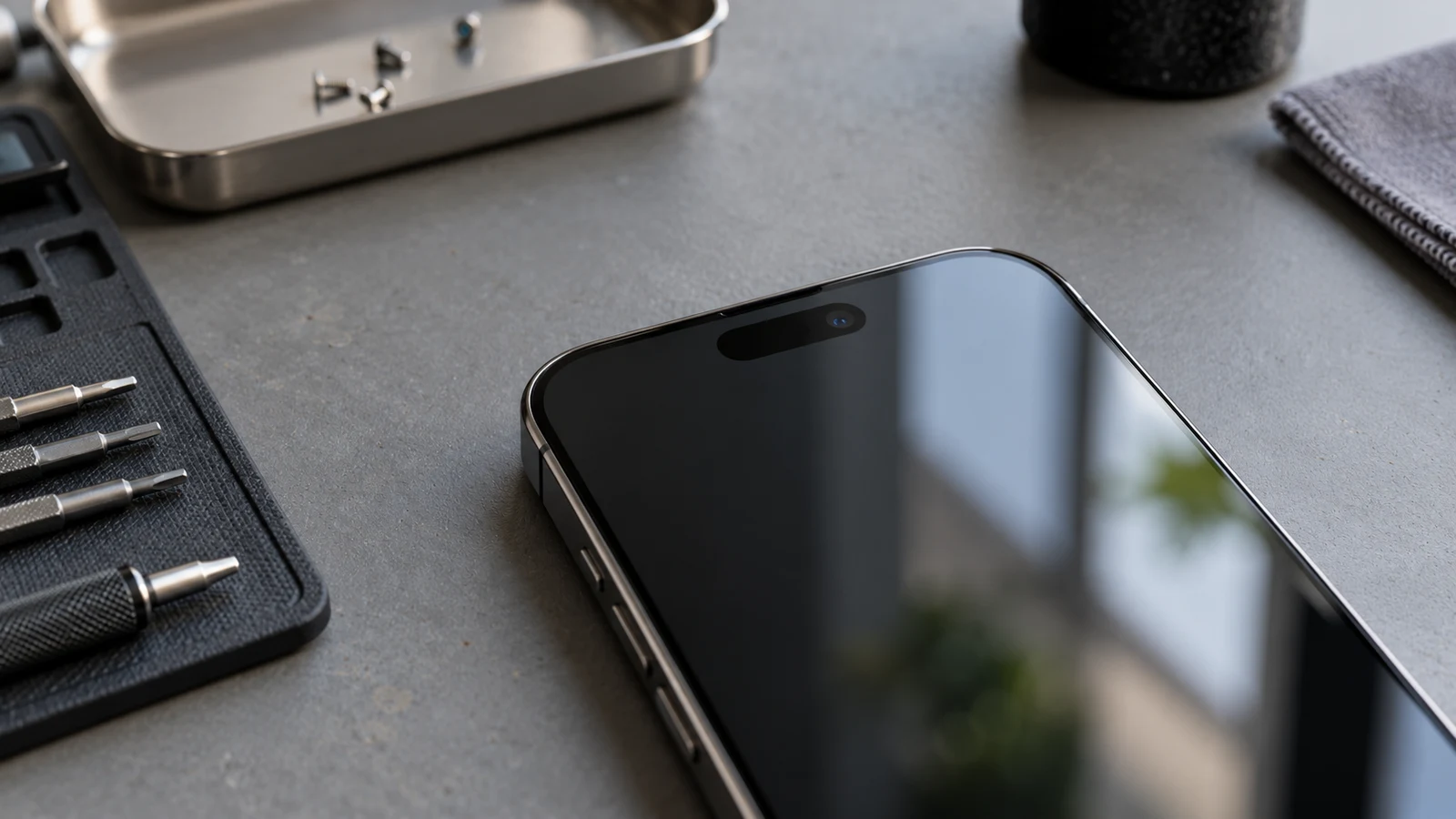
When Face ID stops working on an iPhone, the cause may be as simple as an obstructed camera or a setting that needs attention. However, a persistent error can also indicate damage to the TrueDepth camera system or a problem following an earlier repair.
Start with the simple checks: update iOS, inspect the area around the front camera, restart the phone and verify Face ID settings. If Face ID still cannot be configured, particularly after a drop or screen replacement, professional diagnostics may be necessary.
Replacing the front-facing camera is not a universal solution. Face ID relies on a specialized system whose repair and calibration requirements depend on the iPhone model.
Quick Answer: What Your Face ID Problem Might Mean
| Symptom | Possible explanation | Next step |
|---|---|---|
| Face ID works occasionally | Obstruction, positioning or recognition issue | Check camera area and settings |
| Face ID stopped after an iOS update | Software issue or an underlying fault revealed during startup | Restart and check for updates |
| Face ID stopped after a drop | Possible TrueDepth hardware damage | Arrange diagnostics |
| Face ID stopped after screen repair | Component damage or incomplete calibration | Review repair history |
| Face ID cannot be set up | Configuration problem or hardware failure | Follow Apple’s checks, then seek service |
| Front camera works but Face ID doesn’t | Different components or functions may be affected | Do not assume the system is healthy |
These symptoms are clues, not definitive diagnoses.
Why Face ID Stops Working
Face ID is more complex than taking a picture with the front camera. Apple’s TrueDepth system uses specialized hardware to capture facial depth information and authenticate the person holding the device.
According to Apple’s explanation of Face ID technology, the system uses depth information and an infrared image to create a mathematical representation of the user’s face.
That distinction matters because an ordinary selfie camera test cannot verify every component required for facial recognition.
Several different problems can affect Face ID.
Software and configuration problems
Face ID may behave unexpectedly because a feature has been disabled, iOS needs an update, or the device requires a restart.
For example, Face ID can be configured separately for unlocking the phone, authenticating purchases and signing in to compatible applications. If it works in one situation but not another, settings deserve attention before assuming physical damage.
Face ID also has limitations involving face positioning and visibility.
A requested passcode is not automatically evidence of a defect. iOS intentionally requires the passcode in certain security situations, including after a restart.
Obstruction around the front camera
A poorly positioned screen protector, dirty camera area or certain cases may interfere with the TrueDepth system.
This is particularly relevant when Face ID suddenly becomes unreliable immediately after installing a new screen protector.
Inspect the front of the phone under good lighting. Clean the exterior gently with a suitable soft, lint-free cloth. Never insert anything into the camera openings or attempt to remove internal components.
Physical damage
A fall can affect internal parts without leaving an obvious crack on the display.
Damage may involve camera-related components, connectors or other parts of the TrueDepth system. The phone might still take ordinary selfies while facial recognition fails.
Liquid exposure can also introduce internal damage that may not become obvious immediately.
In these situations, repeatedly resetting Face ID will not repair a failed component.
What Does “Face ID Is Not Available” Mean?
This message indicates that iOS cannot currently provide the Face ID function.
It does not identify the exact failed part.
The message might appear because the device cannot initialize the necessary hardware, because a component is malfunctioning, or because a previous repair has not been completed correctly.
The timing of the error is useful information.
If it appeared immediately after a fall, physical damage becomes an important possibility. If it appeared after a repair, technicians need to examine what was replaced and whether the appropriate procedures were completed.
If it appeared without an obvious event, software checks are a reasonable starting point.
Do not rely on the wording of the error message alone to decide which part to replace.
Face ID Stopped Working After a Drop
The front glass does not need to break for an impact to affect internal hardware.
An iPhone can survive a fall with an apparently normal screen and camera while a more specialized function stops working.
There are several questions worth noting before requesting repair:
Did Face ID stop immediately after the impact?
Does the ordinary front camera still work?
Does the problem occur every time or only occasionally?
Is the phone showing a persistent Face ID warning?
Was there liquid exposure or a previous repair?
These details help establish the sequence of events.
A technician may need to inspect the device and perform appropriate diagnostics before determining whether a component can be repaired or must be replaced.
Avoid repeatedly opening the phone or manipulating its camera assembly yourself. The TrueDepth hardware includes components subject to specific safety and calibration requirements.
Face ID Stopped Working After a Screen Replacement
A screen replacement and a TrueDepth camera repair are not the same operation.
The Face ID system involves components located near the front display area, and repair procedures vary between iPhone generations.
Damage during disassembly is one possibility. However, a calibration or parts-verification problem may also explain why Face ID is unavailable after a repair.
Apple’s documentation on genuine front cameras explains that supported replacement parts may require the Repair Assistant process to complete calibration.
Depending on the model and repair history, Parts and Service History may identify an incomplete repair or a problem with a replaced component.
On supported devices, check Settings > General > About > Parts and Service History.
The available information depends on the iPhone model and iOS version. Not every phone displays the same entries.
Importantly, an incomplete repair notification is not proof that a component is physically broken. Conversely, the absence of an obvious warning does not rule out hardware damage.
If a problem began immediately after a repair, contact the original repair provider and ask what work was performed.
What You Can Check Before Visiting a Repair Shop
A few controlled checks can help separate an ordinary configuration issue from a more serious problem.
1. Check Face ID settings
Open Settings > Face ID & Passcode.
Confirm that Face ID is configured and that the functions you want to use are enabled.
If only one application is affected, investigate that application’s authentication settings before changing the entire Face ID configuration.
2. Inspect the TrueDepth camera area
Check for dirt, smudges, poorly fitted screen protectors and case edges that overlap the camera area.
Remove the suspected obstruction and test again.
3. Restart the iPhone
Restart the device normally. Enter your passcode after startup and test Face ID.
A successful restart does not prove that the hardware is healthy, but it can resolve some temporary software problems.
4. Check for an iOS update
Go to Settings > General > Software Update.
Back up important data before installing a major update, particularly if the phone already shows other signs of instability.
5. Reset Face ID if appropriate
If the earlier checks do not help, Apple’s troubleshooting procedure allows you to reset Face ID and attempt to configure it again.
This removes the existing Face ID enrollment, so only proceed if you are prepared to set it up again.
If setup repeatedly fails or the system reports that Face ID is unavailable, stop repeating the same process and consider hardware diagnostics.
Apple provides these steps in its official Face ID troubleshooting guide.
Can a Broken Face ID System Be Repaired?
Sometimes, but the answer depends on what failed.
A settings issue might require no hardware repair. A damaged or improperly configured TrueDepth component can be more complicated.
The feasibility of a hardware repair may depend on:
The exact iPhone generation.
Whether the affected component is physically damaged.
The device’s previous repair history.
Availability of compatible replacement parts.
Required calibration and verification procedures.
Whether other components were damaged during the same incident.
A camera replacement should never be sold as a guaranteed fix before the failure has been identified.
Modern iPhones combine specialized hardware with software-controlled verification. A component that physically fits the phone may still require the correct repair and calibration process to restore its intended functions.
For that reason, professional diagnostics are more useful than guessing which sensor needs replacement.
Is Face ID Repair Worth It?
A phone can remain usable without Face ID, provided other important functions work. Passcode authentication is still available.
Whether to repair Face ID depends on how much the function matters to the owner and what the diagnosis reveals.
Consider the age and overall condition of the phone, its battery health, existing screen damage and other repair needs.
For a relatively recent iPhone in otherwise good condition, investigating a repair may be worthwhile. For an older device with several unrelated problems, the total cost might make replacement more practical.
The decision should be based on an actual repair estimate, not on the assumption that every Face ID problem requires a complete phone replacement.
Before any significant repair, back up important data whenever the device remains accessible.
Face ID Diagnostics in Downtown Montréal
If your iPhone’s Face ID stopped working after a fall, previous repair or unexplained error, the next useful step is identifying the cause.
Allô Réparation provides smartphone and iPhone repair services in Montréal.
When describing the problem, include the iPhone model, when the failure started, the exact error message and whether the device has been repaired before.
These details can help determine which diagnostic steps are appropriate.
The bottom line: Face ID failures do not all have the same cause. Start with settings and software checks, but use proper diagnostics before committing to a hardware replacement.