
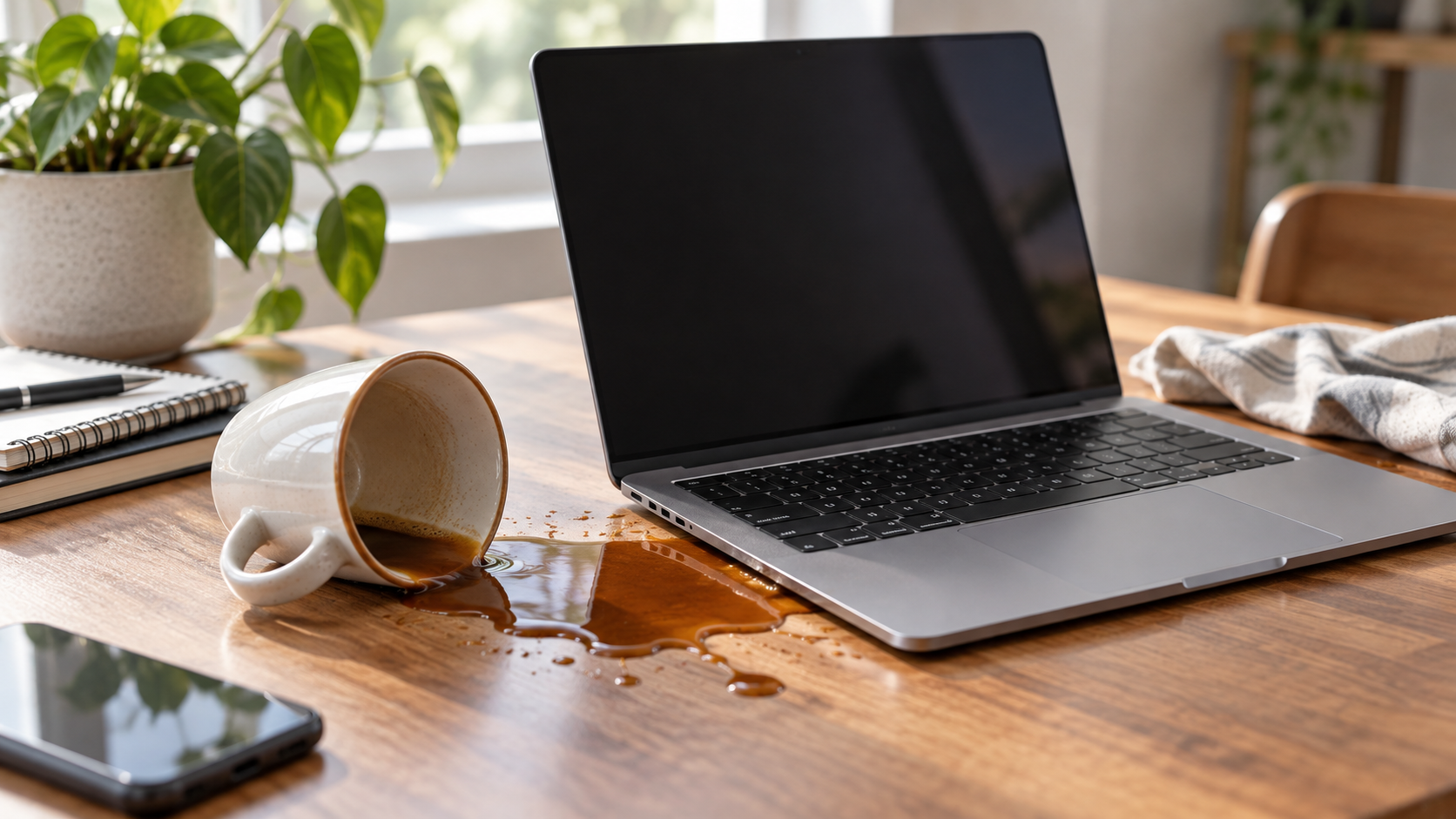
Direct Answer
Disconnect power, shut the MacBook down, unplug every accessory and stop testing it. Move it away from the spill, keep it stable on a dry surface and blot visible liquid from the exterior with a soft lint-free cloth. Do not press keys to “see if it still works,” reconnect the charger, use a hair dryer or compressed air, put it in rice, or insert anything into a wet port. Record what was spilled, where it entered and when it happened, then contact a repair provider. A MacBook that looks dry or briefly works can still have liquid and residue around connectors or powered logic-board circuits.
First 10 Minutes: Quick Answer
| Time | Action | Reason |
|---|---|---|
| First minute | Disconnect external power safely | Stops the charger from feeding the device |
| First minute | Shut the MacBook down; force shutdown if it will not respond | Reduces powered activity inside the computer |
| Minutes 1-3 | Unplug docks, drives, headphones and other accessories | Removes other power and signal paths |
| Minutes 1-5 | Move the Mac to a dry, stable surface and blot the exterior | Removes surface liquid without pushing it into openings |
| Minutes 3-10 | Photograph or note the liquid, entry area, time and behaviour | Gives the technician a clearer starting history |
| By minute 10 | Arrange advice or inspection; keep the Mac off | Dry-looking is not the same as internally clean |
Minute 0-1: remove power without creating another hazard
If the spill reached a power bar, wall adapter or outlet, personal safety comes first. Do not touch a wet plug, adapter or cable with wet hands. If you can cut power at a dry, safe switch or breaker, do so; otherwise move away and get appropriate help.
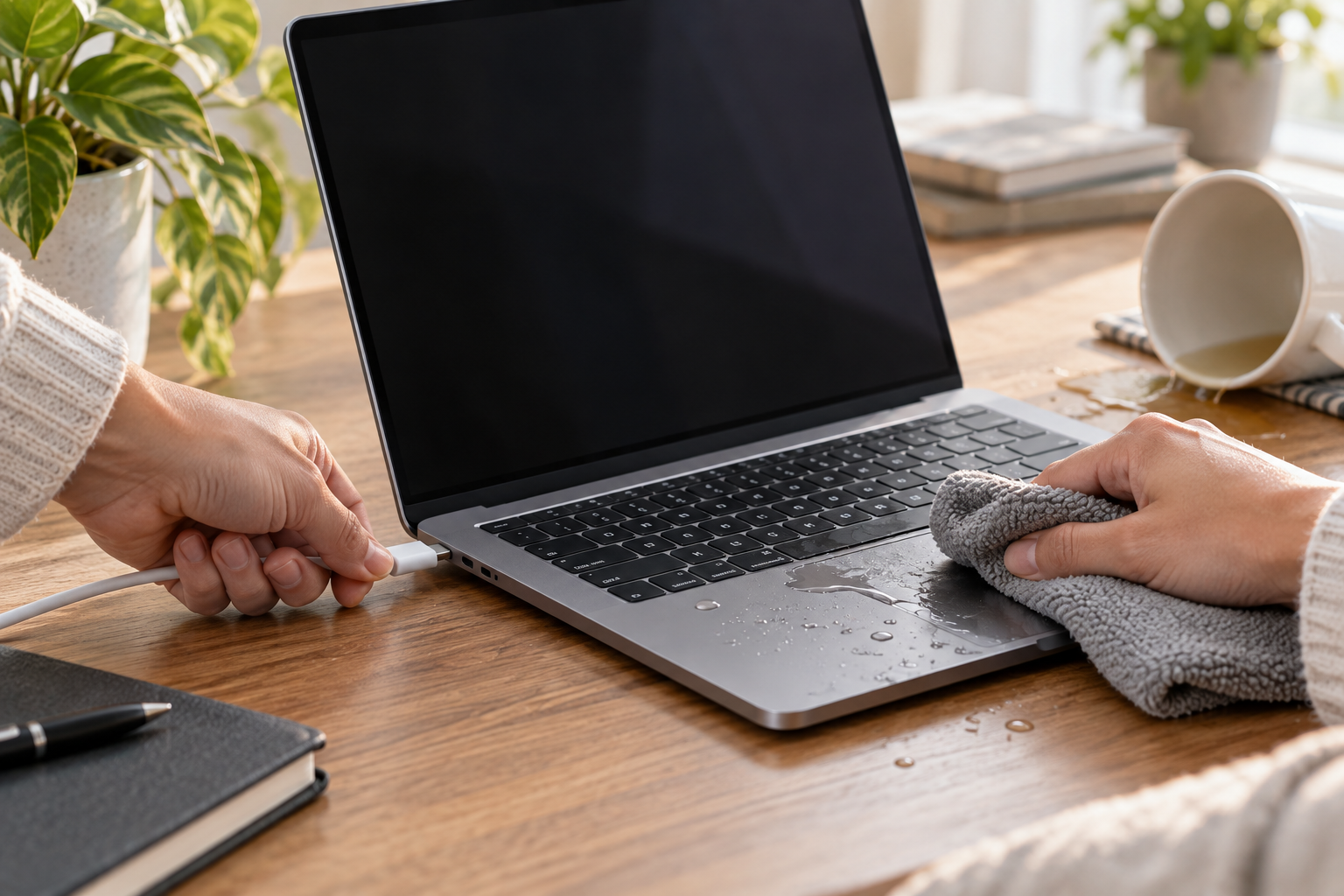
When the power connection is safe to handle, unplug the adapter and disconnect it from the MacBook. Remove any powered dock, monitor, hub or battery pack as well. Accessories can feed power through USB-C even when the normal charger is disconnected.
Then shut the Mac down from the Apple menu if it responds immediately. If it is frozen, press and hold the power or Touch ID button until it shuts down. Apple’s shutdown guidance warns that a forced shutdown can lose unsaved work, but leaving liquid-exposed electronics powered creates a more serious hardware risk.
Do not spend the first minute saving one more file, sending one more message or checking whether every key works. If the Mac was already asleep, do not wake it to shut it down through the menu; disconnect it and keep it inactive.
Minutes 1-3: disconnect accessories and stop moving the liquid
Unplug external drives, headphones, memory cards, Ethernet adapters and other accessories. If an accessory connector is wet, set it aside and do not reuse it until it has been assessed or thoroughly dried according to its manufacturer’s instructions.
Move the MacBook away from the puddle and place it on a clean, dry, stable surface. Keep movements slow. Shaking, spinning or repeatedly changing the laptop’s orientation can move liquid into areas it had not reached. There is no universal “tent position” that guarantees drainage because MacBook internal layouts and spill paths differ.
Do not open the bottom case to disconnect the battery unless you are trained for that exact model and have appropriate battery-safety equipment. Modern MacBook batteries remain an energy source after the charger is removed, and an improvised tool slip can create a separate short or puncture hazard.
Minutes 3-5: blot the outside only
Use a soft, absorbent, lint-free cloth to blot visible liquid from the keyboard, trackpad, enclosure and around the ports. Blot rather than scrub. Do not press keys repeatedly: each press can move liquid through the keyboard mechanism.
Apple’s product-cleaning guidance says to shut down and unplug a Mac laptop before cleaning, use a soft lint-free cloth, avoid moisture in openings and never spray cleaner directly on the computer. After a spill, this is surface cleanup only. Do not pour isopropyl alcohol, contact cleaner or distilled water through the keyboard in an attempt to rinse the inside.
If liquid is visible in a USB-C port, do not insert a cotton swab, paper towel, brush or tool. Apple’s current liquid-detection guidance says not to use an external heat source, compressed air, foreign objects or rice. It advises shutting down and disconnecting power when a supported Mac detects liquid in its USB-C connection.
Minutes 5-10: preserve the history, not another power-on
Write down the information that will be difficult to reconstruct later:
- the exact MacBook model if known;
- what the liquid was;
- whether it contained milk, sugar, syrup, salt or alcohol;
- the approximate amount;
- where it landed: keyboard, hinge, vent, left or right ports, trackpad or display;
- whether the charger or a powered dock was connected;
- whether the Mac shut down itself, stayed on, flickered or made an unusual sound;
- the time of the spill and anything already done afterward.
Take a quick exterior photograph if it does not require turning the Mac on or moving it excessively. This record is more useful than repeatedly reconnecting power to demonstrate the symptom.
Then contact a repair provider and describe the spill accurately. “Water damage” is not enough if the liquid was a large sweet latte that entered through the hinge while the Mac was charging. The liquid type, entry path and powered state affect what should be inspected.
Water, coffee and sugary drinks do not leave the same problem
Plain water can conduct current through contaminants already present on a board and can start corrosion. It should not be treated as harmless. Coffee, tea, soft drinks, juice, beer and other mixed liquids can add sugars, acids, salts, milk solids or oils. As water evaporates, those ingredients can remain as sticky or conductive residue around keyboard layers, connectors and circuit-board components.
That residue is why “leave it off until it dries” is incomplete advice. Drying may remove liquid water without removing contamination. A keyboard can feel normal while residue sits beneath it, and a Mac can restart while corrosion continues in another area.
Tell the technician the real liquid. There is no advantage in calling coffee “a little water”; the cleanup and inspection decision depends on what remains after evaporation.
Why a MacBook may work after the spill and fail later
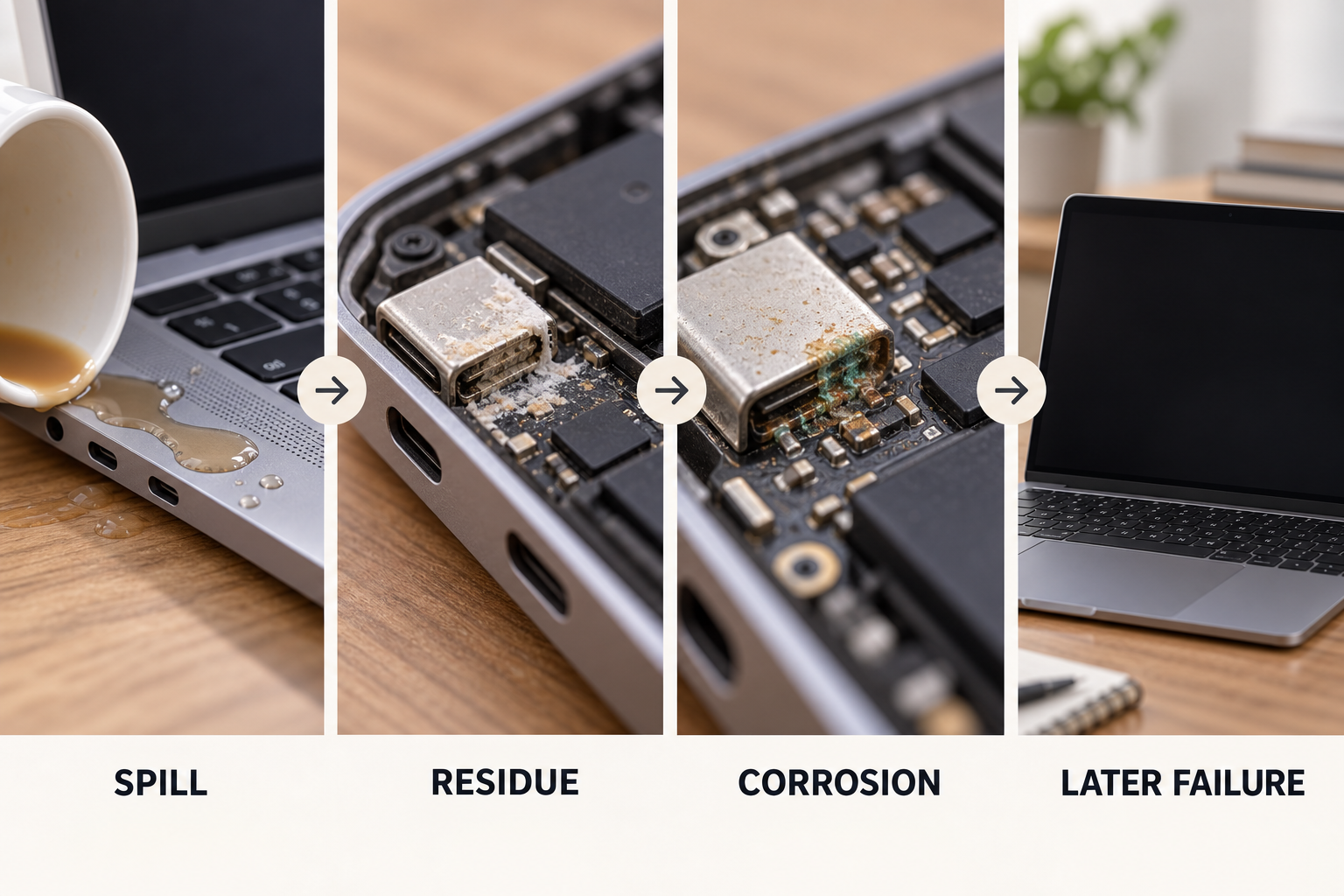
Liquid does not have to destroy the computer immediately. Symptoms can emerge as residue spreads, moisture evaporates unevenly or corrosion changes an electrical connection. Possible later signs include:
- keys that repeat, stick or stop responding;
- trackpad or keyboard behaviour that changes intermittently;
- a charging port that becomes unreliable;
- battery or charging warnings;
- missing backlight, flicker or a blank display;
- fans running unexpectedly;
- random shutdowns, restart loops or complete loss of power;
- unusual heat, smell or visible residue.
None of those symptoms identifies a specific component by itself. A keyboard fault does not prove the logic board is safe, and a no-power symptom does not prove the entire board must be replaced.
Apple states that current Mac laptops include liquid-contact indicators and that a liquid-damaged Mac may need service. Its liquid-damage support page also explains that ordinary limited-warranty coverage and AppleCare Protection Plan terms differ from accidental-damage coverage under eligible AppleCare plans. Check the actual coverage for the serial number rather than assuming a spill is included or excluded from every plan.
What not to do after a MacBook spill
Do not put it in rice
Rice does not clean sugar, salts or corrosion from a logic board. Particles can also enter ports. Apple explicitly advises against rice for a wet USB-C connection.
Do not use a hair dryer, heater or oven
External heat can damage the battery, adhesives, keyboard, display and plastics while failing to clean internal residue. Do not leave the Mac on a radiator or in direct sun.
Do not use compressed air
Air can drive liquid farther into openings. Apple’s wet-port guidance says not to use it. The separate Apple procedure for blowing dust from certain keyboards is not a liquid-spill procedure.
Do not keep checking whether it works
Every attempted startup or charger connection can energize a wet or contaminated area. One successful boot is not proof of a clean board.
Do not bury it in desiccant and postpone the decision
A drying packet can absorb ambient moisture; it cannot inspect a battery connector or remove coffee residue under a shield. Home drying is not equivalent to internal evaluation.
When inspection is most important
Arrange prompt professional advice when the spill crossed the keyboard or vents, the Mac was powered, the liquid contained sugar or milk, the computer shut down, a port displays a liquid warning, or any function changed. Do not reconnect power merely to create a better symptom description.
A repair assessment may involve external inspection, safe opening, battery isolation, checking for liquid paths and corrosion, cleaning affected areas, and testing the keyboard, ports, charging system and logic board. Microsoldering is relevant only if testing finds damaged board components, pads, traces or connectors. It is not a substitute for removing contamination.
If the data is more important than the computer, say that before repair decisions are made. Modern MacBook storage may be integrated with the logic board, so replacing the board can affect the data-recovery path. Do not authorize an erase or whole-board exchange without understanding what happens to unbacked-up files.
Repair or replace after liquid damage?
The answer depends on the affected assemblies, not the size of the visible splash. A localized keyboard or connector problem on an otherwise useful Mac can support repair. Widespread board corrosion, battery damage, a failed display and a saturated top case may create a different total.
Wait for an inspection-based scope. Compare the confirmed repair with the cost of a replacement Mac that has enough memory and storage for your work. Include the current Mac’s age, software support, pre-spill battery condition and existing damage. Also separate the goal of restoring the Mac from the goal of recovering its data; they can require different decisions.
Allo Repair Bench Note
Allo Réparation’s current MacBook service list includes liquid-spill cleanup and repair, water-damage repair and logic-board work; its microsoldering page separately lists liquid-damage PCB restoration. That distinction matters: cleaning residue, replacing a damaged assembly and repairing a corroded board connection are different scopes, even when all began with one cup.
Final Answer
In the first 10 minutes, disconnect power safely, shut the MacBook down, unplug accessories, blot only the exterior and keep the computer off. Do not add heat, air, rice, cleaner or repeated startup attempts. Record what happened and obtain advice based on the liquid, entry point and powered state. A Mac that appears dry or boots once can still contain residue or corrosion.
For a spill assessment in Montréal, contact Allo Réparation and describe the liquid and time of exposure before travelling. The downtown location is at 2051 Rue de la Montagne, Montréal, QC H3G 1Z8. Use the map for the route and check current intake details before leaving. Related service information is available under MacBook and laptop repair, microsoldering services and data recovery.