
Direct answer
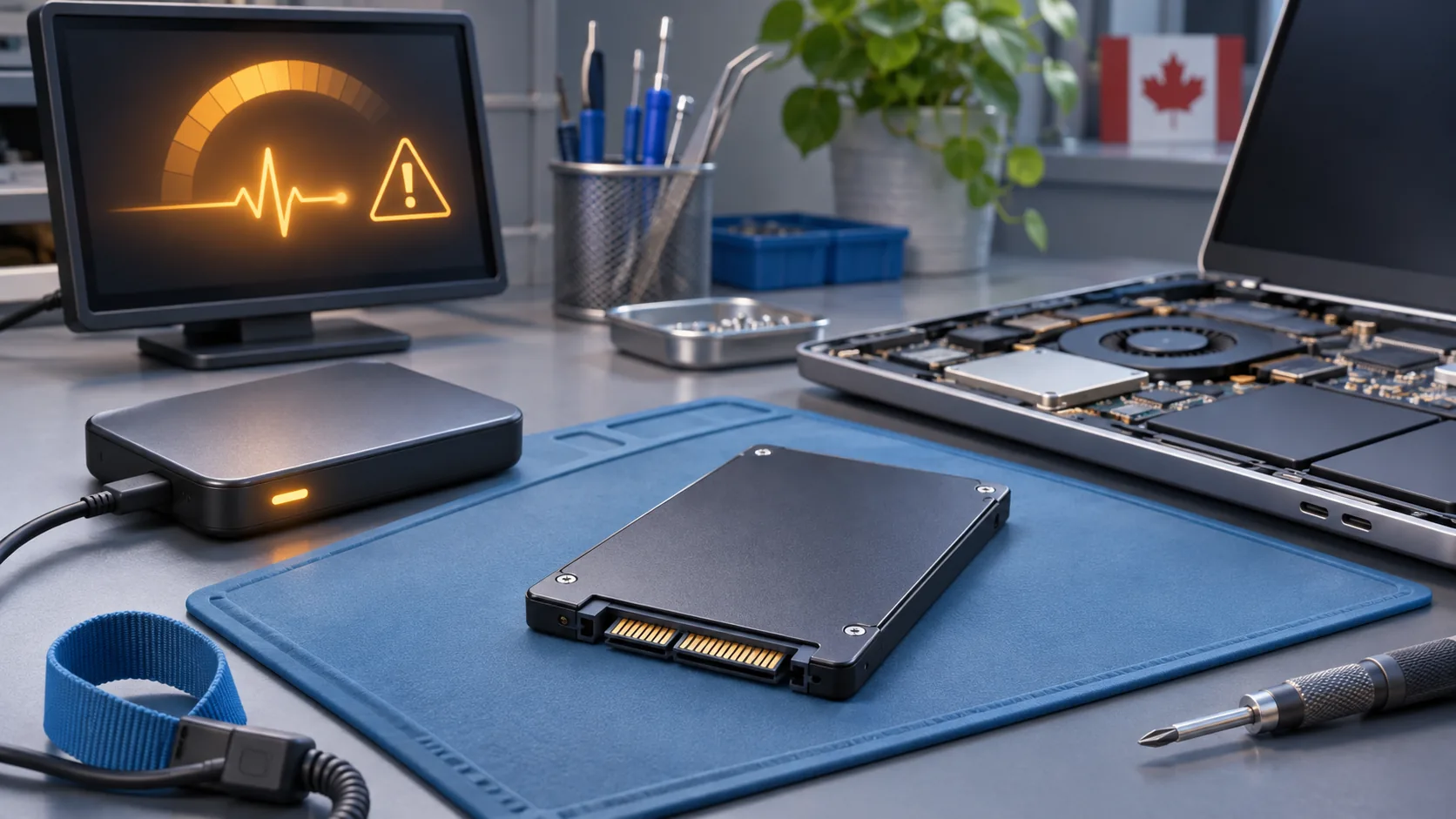
Possible SSD failure signs include repeated read or write errors, files becoming inaccessible, freezes during saves or copies, the drive disappearing, boot-device errors and a manufacturer health warning. Slow performance alone does not prove the SSD is failing, and a normal health status does not explain away real errors. If the drive is still readable, copy irreplaceable files first and verify the copies. Avoid benchmarks, firmware updates, secure erase, repeated repair scans and an operating-system reinstall until the data is safe. Replace the SSD when the data is protected and the drive is unreliable. Choose a recovery-first assessment when the only copy of important data is on a drive that disconnects, becomes read-only or cannot be detected consistently.
Quick answer
| Symptom | Priority | Avoid |
|---|---|---|
| Manufacturer tool reports a critical health warning | Back up immediately and plan replacement | Do not wait for a second warning |
| Files copy slowly with read errors or freezes | Preserve the most important data first | Do not run repeated benchmarks |
| SSD disappears from firmware or Windows | Stop unnecessary power cycles and check the path | Do not reinstall Windows to the same drive |
| Drive becomes read-only | Copy accessible data and assess health | Do not secure-erase or force writes |
| Windows is slow but files and health are normal | Diagnose software, free space and workload | Do not replace the SSD from speed alone |
| Only copy of critical data is inaccessible | Use a recovery-first plan | Do not initialize, format or open the SSD |
An SSD can fail in more than one way
An SSD contains NAND flash memory, a controller, firmware, power-management components and an interface to the computer. A problem in any part of that path can affect data access. The computer's connector, cable, slot, power supply or storage controller can also imitate a bad drive.
That is why "the SSD" should not be blamed from one slow startup. The useful evidence is a pattern of errors, disappearing hardware, health warnings or failed reads and writes.
Record:
- the exact error message or warning;
- whether the drive appears in firmware settings and in the operating system;
- whether it disconnects during a particular task;
- whether the problem began after an impact, power loss, firmware change or liquid exposure;
- whether it is the system drive or a secondary drive;
- whether encryption such as BitLocker is enabled;
- what data exists nowhere else.
The last question determines the order. If the files are unique, data preservation comes before performance tuning.
Warning signs that deserve immediate attention
One symptom can have another cause, but several together raise the risk:
- repeated input/output, read or write errors;
- files or folders that no longer open or copy;
- freezes specifically during saves, installs or large transfers;
- the drive vanishing and returning after a restart;
- a "no boot device" message on a system that previously started normally;
- a drive that suddenly reports the wrong capacity or no usable volume;
- a manufacturer tool reporting critical health, spare-block, wear or temperature status;
- the file system repeatedly requesting repair;
- the drive becoming read-only without the user changing permissions.
Unexpected shutdowns and blue screens can accompany storage trouble, but they can also come from RAM, drivers or power. Preserve the error information and test the complete storage path.
Slow performance is not enough to condemn the drive
A nearly full system drive, Windows updates, antivirus scanning, limited RAM, thermal limits and heavy background applications can all create disk activity and delays. The Windows performance guide recommends checking free space, startup applications, updates and Task Manager resource use.
Compare the slowdown with actual errors. If the SSD passes supported health checks, remains consistently detected and transfers files without errors, continue diagnosing the operating system and workload. If the drive freezes during reads or disappears, do not keep generating load just to obtain a benchmark number.
Use health data as evidence, not a guarantee
S.M.A.R.T. stands for Self-Monitoring, Analysis and Reporting Technology. Kingston's SSD FAQ explains that SMART attributes are used to measure drive health and warn about impending failure. Windows can expose reliability information such as temperature, errors, wear and power-on time through Get-StorageReliabilityCounter.
Manufacturer tools can provide clearer interpretation for supported drives. Samsung Magician, for example, offers drive health and usage features for supported Samsung products. Samsung's Magician page also notes that health and total-usage features depend on the product and supported SMART attributes.
This limitation matters. A USB bridge, RAID controller, storage driver or unsupported OEM drive may hide information. Different brands expose different attributes. Use the correct manufacturer tool when available, but combine its result with detection stability, read errors and the condition of the computer's connector and power path.
Back up first when the drive is stable enough
If the SSD is readable and not disconnecting, copy the most valuable, irreplaceable files first. Do not begin with replaceable applications or a full clone if a few documents, photos or project files matter most.
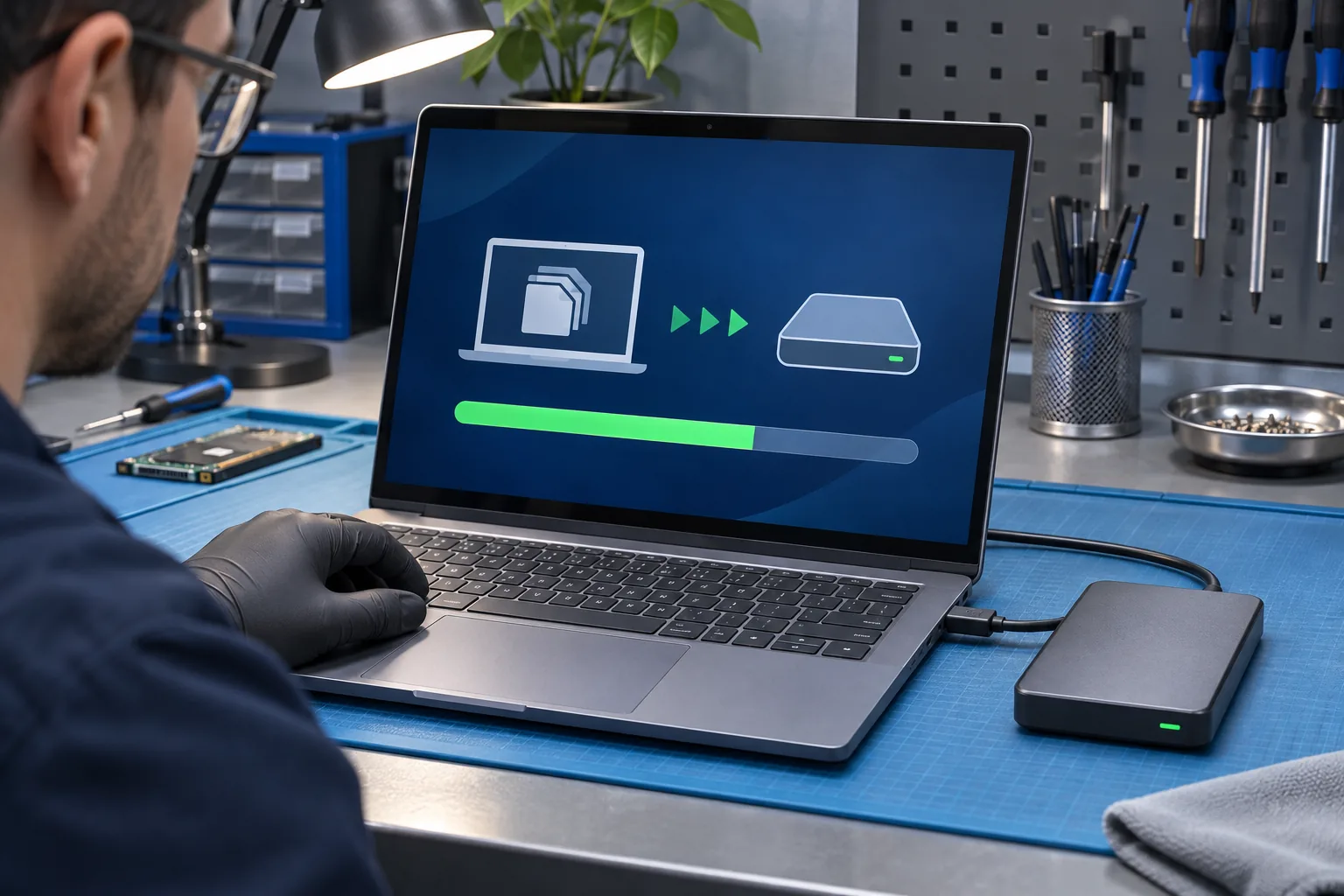
After copying:
- Open representative files from the destination.
- Confirm that the destination is a different physical device or a verified cloud location.
- Check dates and file sizes where practical.
- Preserve encryption recovery keys and account credentials.
- Only then consider a complete image or migration.
Sync is not always backup. A damaged or deleted file can synchronize to another device. Confirm what version history or independent copy actually exists.
When normal copying is making things worse
Stop consumer-level copy attempts when the drive:
- disconnects during each transfer;
- becomes extremely hot;
- makes the system freeze on every read;
- appears only intermittently;
- shows the wrong capacity;
- is not detected consistently by firmware;
- contains unique data that cannot be replaced.
Repeated power cycles and retries can consume the remaining stable access window. A recovery workflow may use controlled imaging, hardware interfaces and a strategy that prioritizes readable areas. That is different from repairing Windows or cloning a healthy upgrade source.
Data recovery service is the relevant path when obtaining the files is the main goal. Recovery cannot be guaranteed, and the first assessment should distinguish a logical problem from controller, power, firmware or NAND trouble.
Do not run destructive or write-heavy tools first
Before the data is safe, avoid:
- initializing an unrecognized drive;
- formatting or deleting partitions;
- running secure erase;
- reinstalling Windows onto the same SSD;
- updating SSD firmware without a verified backup;
- running repeated full-surface tests or benchmarks;
- using repair commands that write changes to the only copy;
- opening the SSD enclosure or moving components.
Samsung recommends a complete backup before an SSD firmware update even though the update is not designed to erase data. That is a useful general principle: maintenance should follow backup, not substitute for it.
File-system repair can be appropriate after the hardware path is stable and the data is protected. On a failing source, a write-based repair may change structures that a recovery process would otherwise analyze.
Is it the SSD, slot, cable or power?
A SATA SSD depends on its data and power connections. An NVMe drive depends on the M.2 connector, board power and firmware support. External SSDs add a USB cable, enclosure or bridge.
Controlled comparisons can help:
- replace one removable cable with a correct known-good cable;
- test another supported port without forcing the connector;
- check whether the drive remains visible in firmware;
- inspect for liquid, impact or heat damage;
- verify that the computer is stable with another known-good drive.
Do not move an unstable encrypted drive among many computers without recording the original configuration. Hardware encryption, RAID, BitLocker and vendor security can affect access. Preserve keys and configuration details.
Repair, replace or recover?
These are different goals:
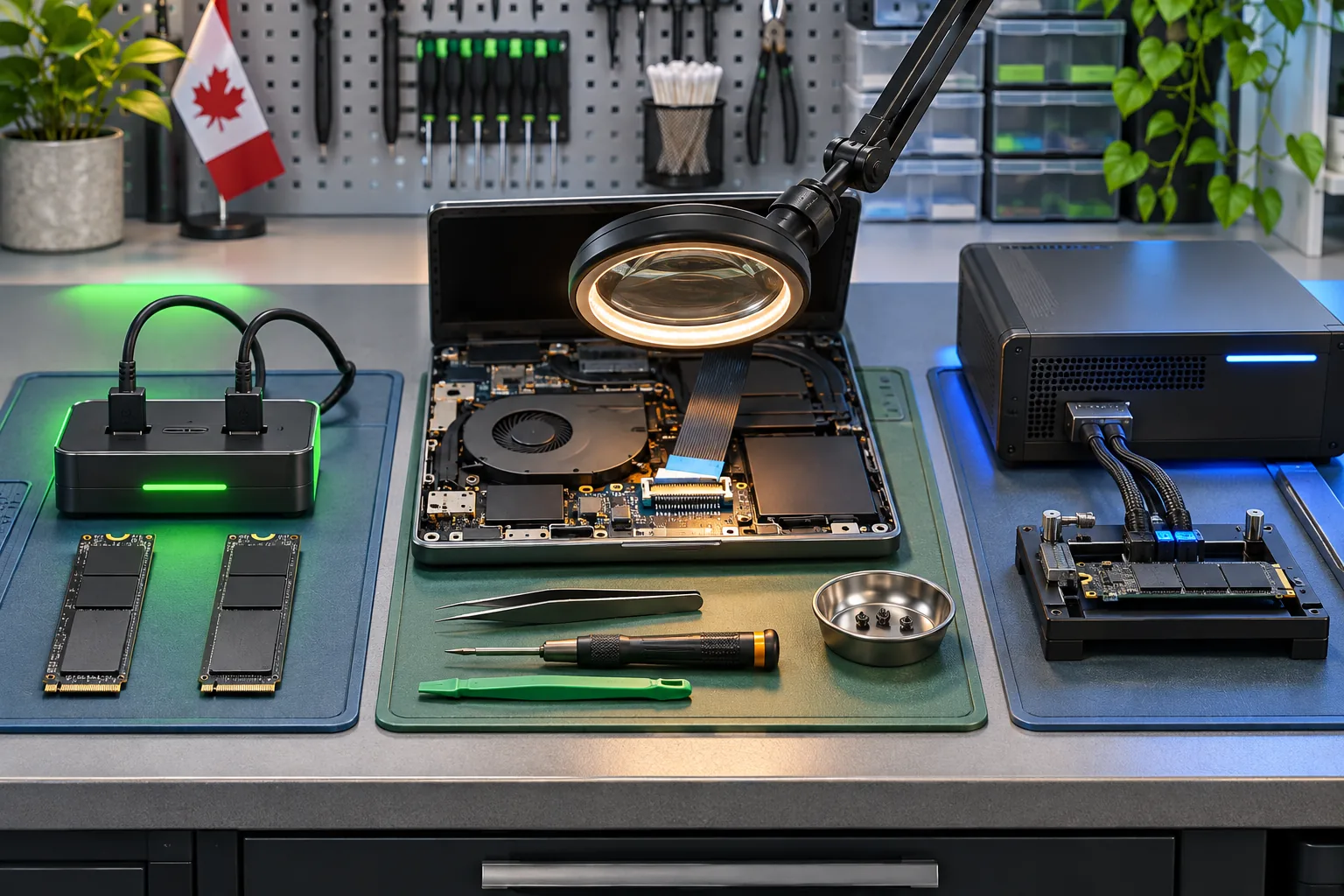
Back up and replace
Choose this path when the drive is still readable, the important data has been verified elsewhere and health or stability evidence shows the SSD is no longer trustworthy. SSDs are normally replaced rather than repaired for continued everyday storage.
Repair the computer's storage path
Choose this path when testing shows that the SSD is healthy but the cable, slot, power circuit or connector is faulty. MacBook and laptop repair can evaluate the drive and the host system together.
Recover data first
Choose this path when unique files are inaccessible, the drive is intermittent or ordinary copying is causing freezes and disconnects. The goal is to obtain data, not to make the original SSD reliable for reuse.
Do not use a recovered or previously unstable SSD as the only storage location afterward, even if it appears to work again.
Students, creators and businesses should define the priority
A thesis, accounting file, client project or authentication database may be worth far more than the drive. Write down which folders and dates matter most. If a cloud service is involved, check its web interface from another device before assuming the latest version is gone.
Do not spend the remaining readable time copying the operating system when only a small project folder is irreplaceable. Conversely, when the data is already backed up, replacement may be faster and more dependable than attempting to preserve the existing installation.
Final answer
Repeated read or write errors, disappearing hardware, boot-device failures and critical health warnings are stronger SSD failure signs than slow performance alone. Protect irreplaceable files first, verify the copies and avoid write-heavy repairs, firmware updates and reinstalls until the data is safe.
Use SMART and manufacturer tools as evidence, while remembering that connections and controllers can limit what they report. Replace an unreliable SSD after backup. Choose a recovery-first assessment when the only copy of important data is on a drive that cannot be read consistently.
Get an SSD and data assessment in downtown Montréal
Bring the computer or drive, the correct power accessory and any error photos to Allô Réparation on Google Maps. State whether the data is backed up, whether encryption is enabled and which files have priority before further tests are run.