
Direct answer
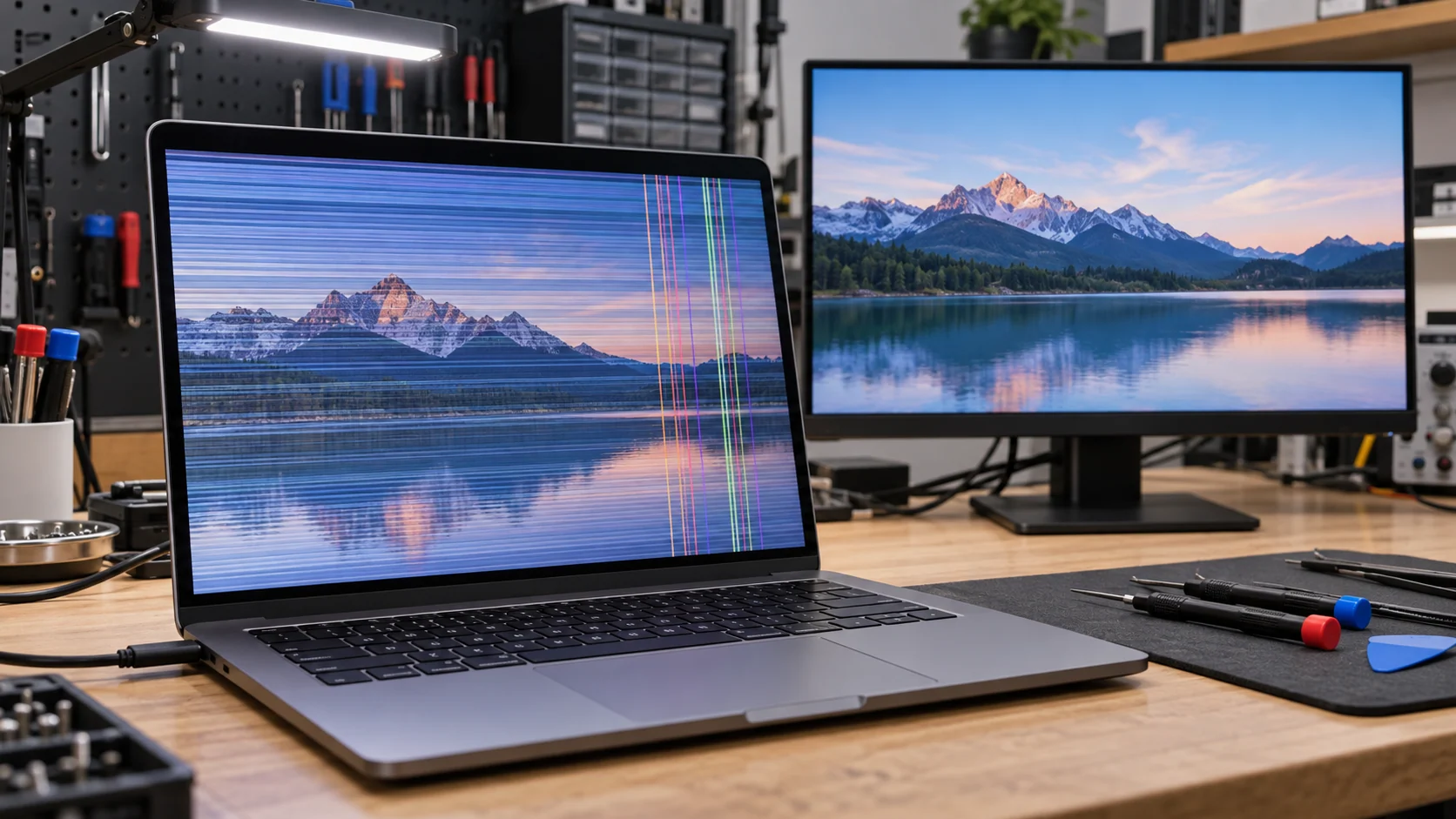
Laptop screen flickering or coloured lines can come from software, the display panel, the cable that passes through the hinge, a connector or the graphics hardware. Start with low-risk observations: note whether the problem appears before Windows loads, whether Task Manager flickers, whether changing the lid angle affects it and whether an external monitor shows the same defect. A stable external display with a faulty built-in screen points more strongly toward the panel or cable, while the same corruption on both displays can point toward software or graphics hardware. These are clues, not final proof. Back up important files, avoid twisting the lid and arrange diagnosis if the image is unstable, the hinge is damaged or the laptop overheats.
Quick answer
| Test or symptom | What it suggests |
|---|---|
| Task Manager flickers with the rest of Windows | Display driver or deeper graphics path is more likely |
| Task Manager stays stable while another app flickers | An incompatible application is more likely |
| External monitor is clean | Built-in panel, cable or connector becomes more likely |
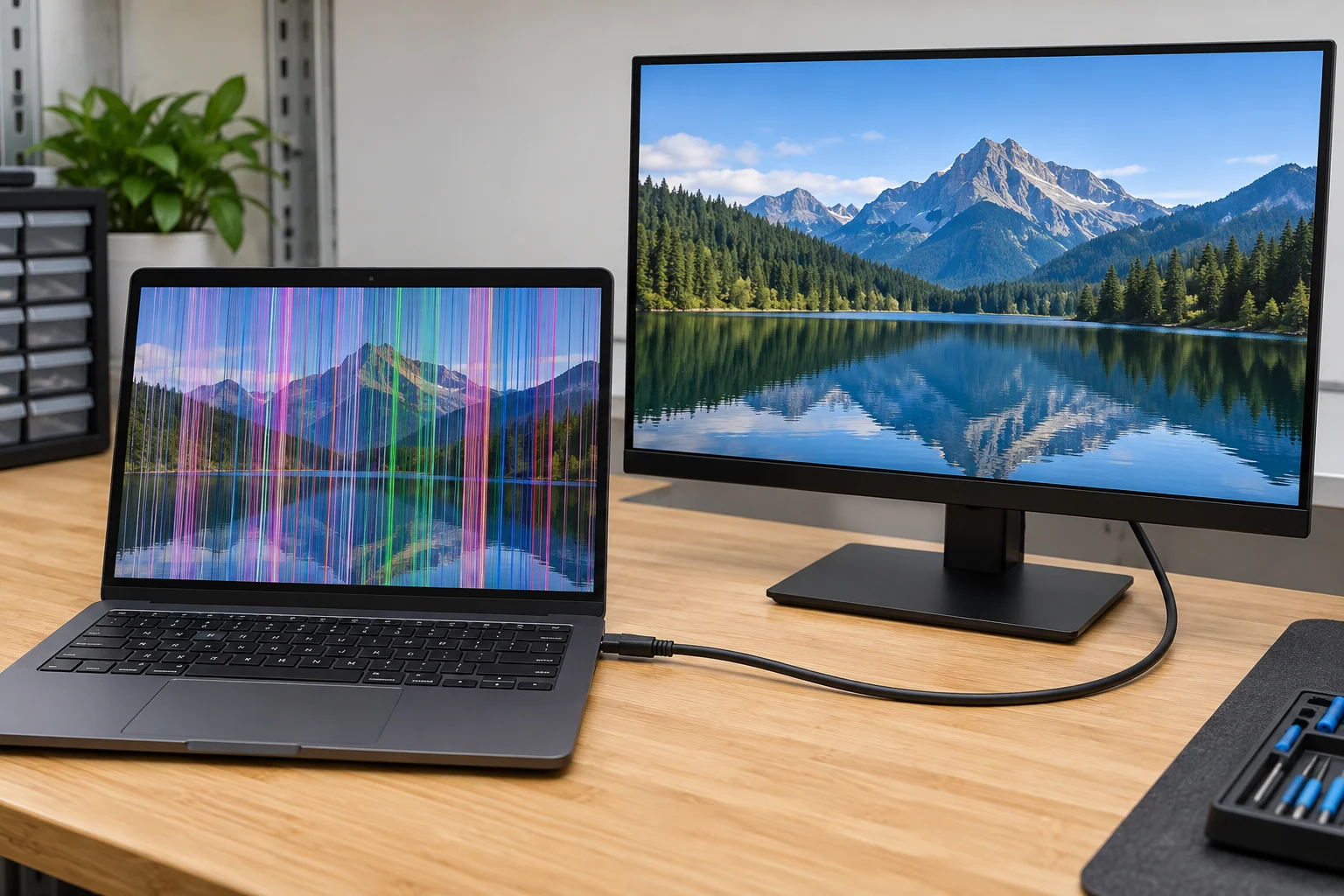
| Both screens show the same lines | Driver, operating system or graphics hardware becomes more likely |
| Image changes when the lid moves | Cable, connector or hinge-area damage becomes more likely |
| Lines appear at startup or in firmware screens | Hardware is more likely than a normal Windows app |
First decide whether the problem is flicker, lines or a blank screen
These symptoms can overlap, but the pattern matters. Flicker is repeated brightness or image instability. Lines may remain fixed, change colour, spread with pressure or appear only at certain refresh rates. A blank screen can mean that the laptop is not starting, the backlight is off or the image is being sent to another display.
Record what you see before changing settings. A short phone video can capture intermittent flicker better than a screenshot. Note whether the fault starts immediately, after sleep, after a driver update, under load or only when the laptop warms up.
Do not press on the display to see whether the lines move. Pressure can damage the liquid-crystal layers and turn a diagnosable fault into a cracked panel.
Use simple tests to separate software from hardware
Check Task Manager in Windows
Microsoft's current screen flicker guide uses Task Manager as a first separation test. If Task Manager flickers with everything else, a display driver problem is more likely. If Task Manager remains stable while the rest of the screen flickers, an incompatible app is more likely.
This test addresses Windows flicker. It does not rule out a cable, panel or intermittent graphics fault, especially when the symptom also appears before sign-in or changes with lid movement.
Connect one known-good external display
Use a compatible monitor and cable. If the external image remains stable while the built-in display shows lines, the internal display path becomes the main suspect. That path includes the panel, backlight electronics, display cable and connectors.
If both displays show identical corruption, look more closely at the driver, graphics processor, memory or operating system. A stable external monitor is a useful clue, but not absolute proof because laptops can use different signal paths and graphics modes for internal and external displays.
Observe the startup screen
Lines that appear on the manufacturer logo, firmware settings or a pre-boot diagnostic are not being created by an ordinary Windows application. That moves hardware higher on the list. If the screen is clean until Windows loads, software, driver and refresh-rate causes deserve more attention.
Use a screenshot as a clue
Take a screenshot while the defect is visible, then view that file on another device. If the captured file contains the same corruption, the problem occurred before the image reached the laptop panel. If the file is clean, the panel, cable or connector becomes more likely. A screenshot is not a complete graphics test and may miss intermittent faults, so combine it with the other observations.
When lid angle changes the image
If flicker or lines appear at one lid angle and disappear at another, stop repeating the movement. The display cable often passes through or beside the hinge area. A loose connector, strained cable, damaged hinge mount or pinched route can produce an angle-dependent symptom.
Look for a stiff or loose hinge, a separating bezel, a lifting palm rest or a previous impact near the rear corners. Do not remove the bezel or pull on a visible cable without the model-specific service procedure. The battery should normally be disconnected before internal display connections are handled.
The laptop repair service covers display, cable, hinge and board diagnosis. When the casing is also separating, treat the structural problem and the screen symptom as one repair scope instead of replacing a panel in a damaged frame.
What the symptom pattern can tell you
Panel or backlight fault
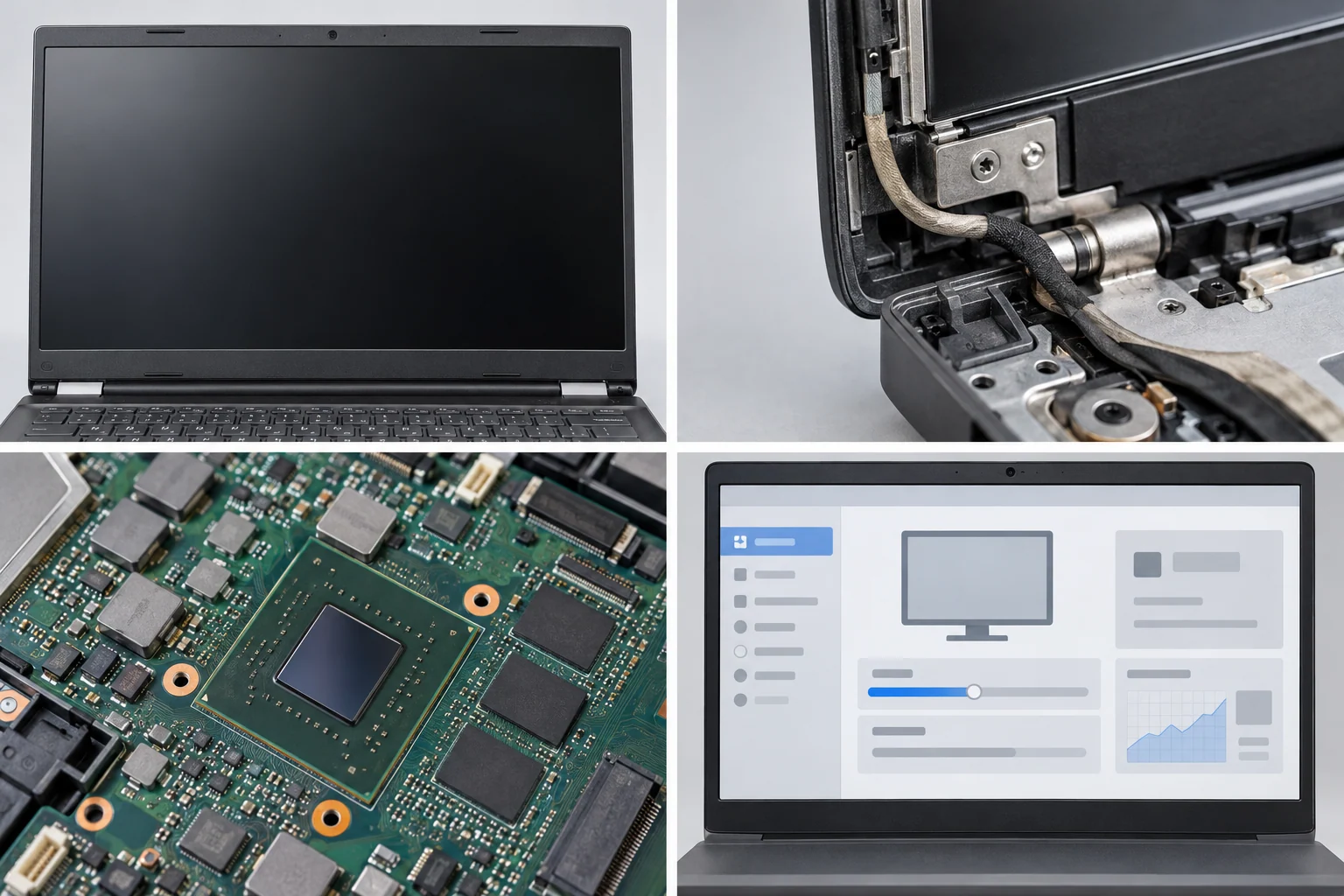
Fixed lines, a dark area, colour distortion or an image that changes under light pressure can point to the panel. Do not keep applying pressure as a test. A faint image visible with a flashlight can suggest a backlight problem, but safe diagnosis still depends on the model.
Display cable or connector
Angle-dependent flicker, brief recovery after moving the lid or a fault that followed hinge damage can point to the internal cable path. The cable may be replaceable separately or supplied as part of a display assembly.
Driver or incompatible application
Flicker that started after a software or driver change and does not appear before Windows loads may be software-related. Microsoft recommends updating, rolling back or reinstalling the display driver after the Task Manager test. Use the laptop or graphics manufacturer's supported driver rather than an unknown download site.
Graphics processor or board fault
Corruption on both internal and external displays, instability under graphics load or lines in pre-boot screens can move the main board or graphics hardware higher on the list. Heat, power delivery and memory can also affect the result. Board-level diagnosis should confirm the fault before a GPU or motherboard repair is proposed.
Safe steps you can try
- Save work and make a current backup.
- Restart the laptop normally.
- Disconnect unnecessary docks, adapters and displays.
- In Windows, press Windows + Ctrl + Shift + B once to reset the graphics driver.
- Check Task Manager during the flicker.
- Test one compatible external monitor and cable.
- Record whether the symptom appears before Windows loads.
- Use the manufacturer's official driver and support page for an update or rollback.
Stop troubleshooting if the laptop smells unusual, becomes very hot, has liquid damage, shows a swollen case or loses power. Do not continue driver experiments when the hinge is physically pulling the screen apart.
When repair is usually reasonable
A panel or cable repair is worth evaluating when the laptop otherwise performs well and the chassis is sound. The full model number is essential because display size alone does not identify resolution, connector position, refresh rate, touch support or mounting style.
Repair becomes a broader decision when the display problem comes with a broken hinge, bent lid, damaged base, overheating or board failure. Ask whether the quote covers only the visible screen or the structural and electrical cause as well.
Replacement deserves consideration when several major assemblies are failing, the correct display is unavailable or the laptop no longer meets software and performance needs. A clean external image can provide temporary desktop access, but it should not hide a cable that is being damaged each time the lid moves.
Prepare the laptop for diagnosis
Bring the usual charger and, if practical, the external monitor adapter that reproduced the problem. Record the application, lid angle, power state and time after startup when the fault appears. If the defect is intermittent, bring the short video.
Back up the device before service. Do not provide an account password unless a specific test requires it and you understand how access will be handled. A technician can often perform initial display and pre-boot tests without opening personal files.
Final answer
Flicker and display lines are symptoms, not a diagnosis. Task Manager, startup behaviour, a screenshot, lid-angle changes and one external-monitor test can narrow the possibilities without opening the laptop. A stable external display points toward the internal panel or cable; matching corruption on both displays raises the likelihood of software or graphics hardware.
Avoid pressure on the panel and repeated hinge movement. Back up the laptop and request a repair scope that covers the screen, cable, connectors, hinge structure and graphics path as the evidence requires.
Diagnose the display in downtown Montréal
Bring the laptop, its charger and your observations to Allô Réparation on Google Maps. Mention whether an external monitor is clean, whether the image changes with the lid and whether the problem appears before Windows. Those details are more useful than guessing which part has failed.