

Direct Answer
The shutdown pattern is the best first clue. If the laptop turns off only on battery or at a repeatable percentage, start with the battery. If charging disconnects when the plug moves or the failure occurs under heavy load with an undersized adapter, investigate the charger and port. If the machine becomes hot, its fans race, performance drops and it powers off after sustained work, check cooling. If it fails on both battery and verified external power, including outside Windows, motherboard or other hardware becomes more plausible. A blue-screen restart is different from an instant loss of power, so record exactly what the screen, lights and fans do before replacing parts.
Quick Answer
| Pattern | Stronger starting suspect | Best next evidence |
|---|---|---|
| Shuts off only on battery | Battery or battery connection | Battery health/report and manufacturer diagnostics |
| Dies at the same displayed percentage | Battery calibration, capacity or cell imbalance | Compare repeated behaviour and diagnostic result |
| Charging icon changes when plug moves | Adapter cable, DC/USB-C port or connector | Test a known-good compatible adapter without flexing the plug |
| Shuts off during gaming/rendering and feels hot | Dust, fan, heatsink or thermal protection | Temperature/fan pattern under a normal repeatable load |
| Shows a stop code and restarts | Driver, Windows or hardware error | Photograph the code and check recent changes |
| Instant black screen on battery and AC | Power delivery, motherboard or protection event | OEM pre-boot diagnostics and bench testing |
| Screen goes black but audio/fans continue | Display or sleep/output issue, not necessarily shutdown | Check external display, power light and whether Windows still responds |
First confirm what “turns off” means
Four events are often described with the same phrase:
- Instant power loss: screen, lights and fans stop without a normal Windows shutdown.
- Restart: the manufacturer logo returns, sometimes after a brief stop-code screen.
- Sleep or hibernation: the power light may pulse and the session returns when the lid or power button is used.
- Display loss: the screen goes black while sound, keyboard lights, fans or an external display continue.
These lead to different tests. Microsoft’s current unexpected-restart guidance explains that Windows can restart after a serious hardware, driver or software error and may show a stop code. Photograph that code instead of calling every restart “the battery.”
If only the display disappears, try the laptop’s brightness keys and an external screen after the machine is stable. A failed backlight, graphics driver or lid sensor can imitate a shutdown without removing system power.
Record the pattern before trying fixes
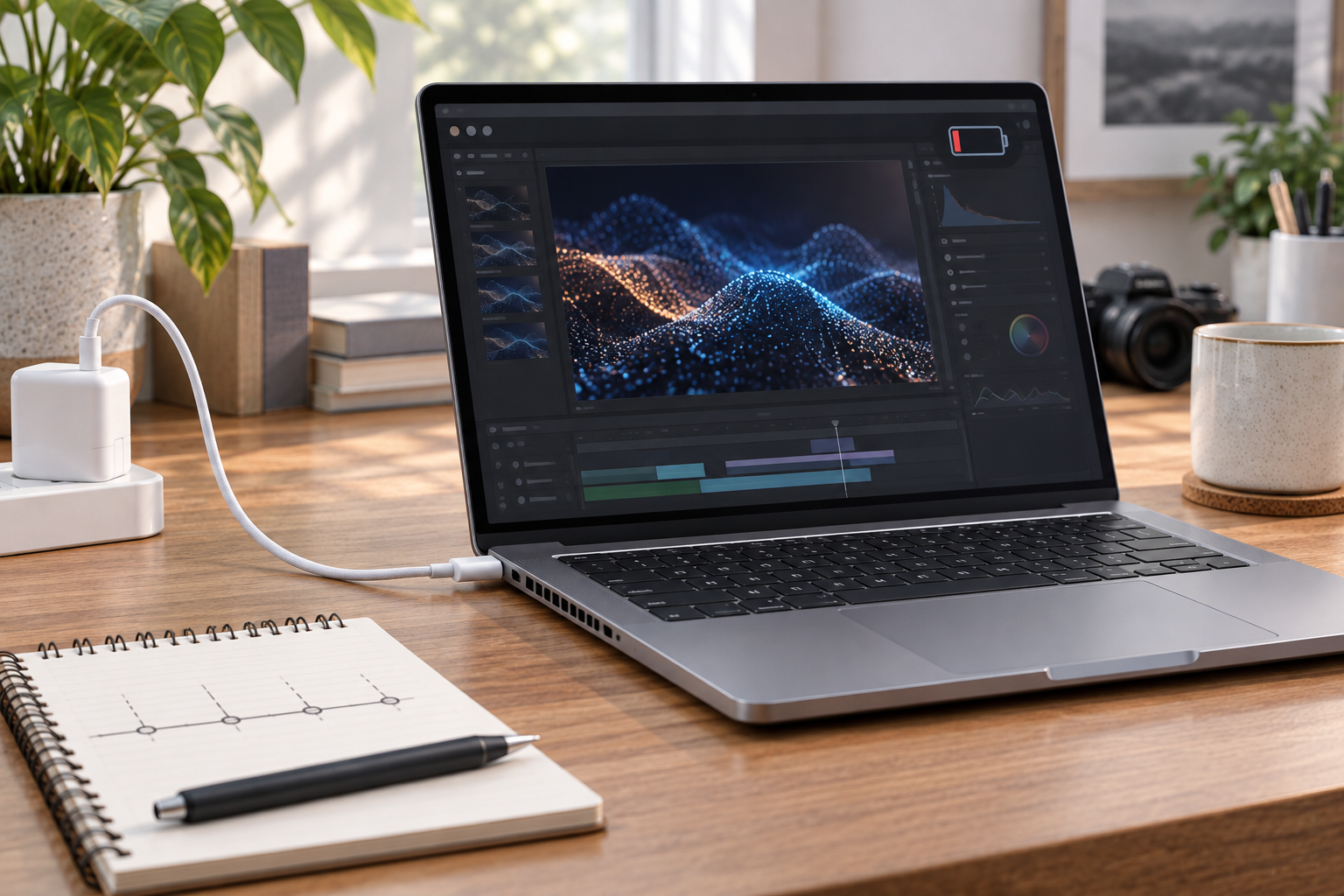
Back up important files first if the laptop remains usable. Unexpected power loss can interrupt writes and make a later startup problem more complicated.
For the next event, note:
- whether the charger was connected;
- the displayed battery percentage;
- what application or workload was running;
- whether the chassis was unusually hot or the fan was loud;
- whether the charging light or icon changed;
- whether the laptop moved or the plug was touched;
- whether a stop code, error message or manufacturer warning appeared;
- how long the laptop had been running;
- any recent battery, RAM, SSD, driver, BIOS or Windows change.
One clean pattern can remove several suspects. A machine that runs for hours on verified AC power but shuts down quickly on battery does not initially point to an overheating CPU. A machine that fails after ten minutes of the same game on both power sources needs a different investigation.
Battery-related shutdowns
A worn or defective battery can report charge but fail to deliver the required current. Common clues include shutdown only away from AC power, abrupt percentage drops, much shorter runtime, a battery warning, or failure at a similar state of charge. Cold conditions and heavy load can expose weak battery behaviour, but do not use one winter shutdown as proof.
Windows can generate a battery history report. Open Terminal or Command Prompt and run:
powercfg /batteryreport
Microsoft documents that powercfg /batteryreport generates an HTML report of battery usage characteristics. Compare design capacity, recent full-charge capacity and usage history, but treat the values as evidence rather than a pass/fail verdict. Firmware reporting, battery age and usage patterns all affect interpretation.
Run the laptop manufacturer’s built-in battery diagnostic as well. Record any error code. Do not open the chassis, disconnect an internal battery or substitute an unverified pack as a quick test. If the case bulges, the trackpad lifts, the battery is visibly swollen or the laptop becomes unusually hot while idle, shut it down, disconnect the charger if safe and arrange service.
A useful isolation test
If the laptop can operate safely on AC power, compare normal light use on a known-good compatible adapter with the same use on battery. Do not run a stress test. A fault that consistently follows battery operation supports the battery path; a fault present in both states does not clear the battery completely, but it widens the investigation.
Charger, cable and charging-port problems
An adapter can power a sleeping or lightly loaded laptop yet fail when CPU and GPU demand rises. A USB-C adapter or cable may also support charging at a lower power than the laptop requires. Proprietary adapters can have identification pins or communication that the laptop uses to recognize available power.
Check the label and model-specific power requirement. Test a known-good manufacturer-approved or correctly specified adapter and cable. Connect directly rather than through a dock. Stop if the plug, cable or port is damaged, discoloured, unusually hot or only works when held at an angle.
Port or connector trouble is more likely when:
- the charging indicator changes as the untouched cable or laptop moves;
- one USB-C charging port works and another does not;
- the plug no longer seats normally;
- the problem began after a drop or cable pull;
- the battery continues to drain under load while an underpowered adapter is connected.
Dell’s current AC-adapter troubleshooting is model-specific but illustrates the useful distinction between adapter recognition, battery health and power-management components. For another brand, use that manufacturer’s support and required adapter specifications.
Do not scrape a charging port with metal, twist the plug to keep it alive or flash the BIOS while the laptop has unstable power. A firmware update interrupted by a power loss can create a second problem.
Heat-related shutdowns
Thermal protection becomes more plausible when failure follows sustained load, fan noise rises, performance slows before shutdown, the vents are hot or blocked, or the machine lasts longer after cooling. Dust, a stalled fan, blocked intake, dried thermal interface material, a loose heatsink or an inappropriate surface can all reduce cooling.
Place the laptop on a hard, flat surface with clear vents. With it shut down and unplugged, inspect exterior intakes and exhausts for lint. Do not operate it on bedding or a soft bag. Do not push tools into a fan or spray liquid through a vent.
Dell’s updated laptop heat guide lists random shutdowns, reboots and lockups among possible overheating symptoms and recommends model-specific BIOS, driver and built-in diagnostic checks. The exact temperature limit and cleaning procedure vary by laptop; do not import a desktop CPU number or another model’s disassembly video.
If a normal workload produces uncontrollable temperature rise, repeated shutdown or a fan error, stop repeating the test. A cooling repair is less expensive than converting a fan problem into heat damage, but the article cannot determine which part is at fault remotely.
Windows, driver and software restarts
A visible stop code, automatic restart or problem that began immediately after a driver, update or new peripheral can be software-related or can expose failing hardware. Microsoft recommends removing newly added hardware and using Safe Mode as basic steps for repeated stop-code errors. Install drivers and firmware from Windows Update and the laptop manufacturer rather than a third-party driver bundle.
Check Windows Security > Device performance & health for battery, storage and software warnings. If the laptop restarts, Event Viewer may record useful context. However, do not overread one critical event.
Microsoft’s Event ID 41 documentation says the event means Windows restarted without a clean shutdown. By itself, it may not identify whether the cause was power loss, a crash or a forced shutdown. Look for a bug-check code, the event immediately before the failure and the real-world pattern.
Avoid resetting Windows or erasing the drive as an early hardware test. If the failure happens in the manufacturer’s pre-boot diagnostics or firmware setup, Windows is not required to reproduce it.
When motherboard failure becomes more likely
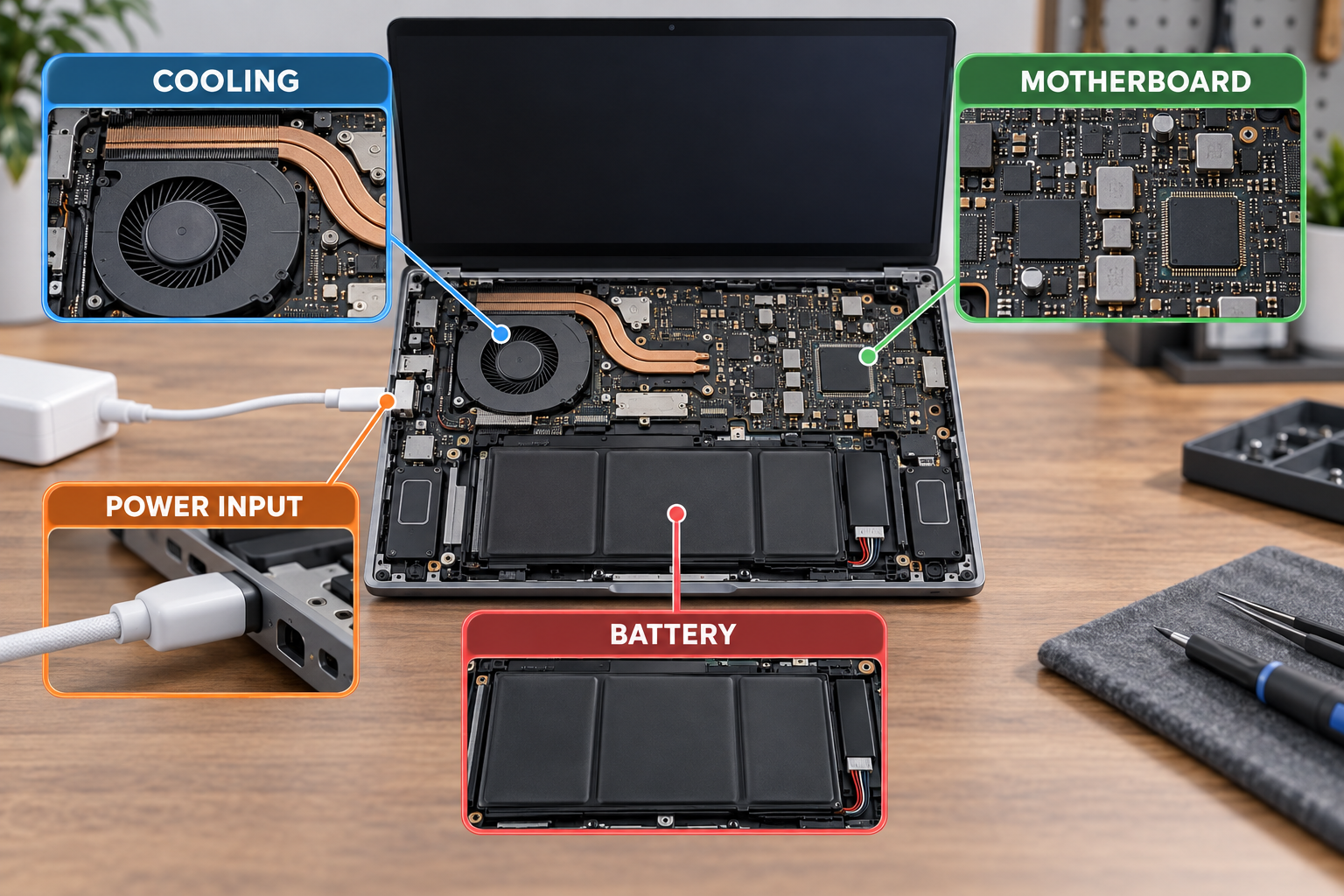
“Motherboard” should be a conclusion after isolation, not the name for every unexplained shutdown. Board-level power delivery, charging circuitry, damaged connectors, corrosion or a failing component can cause abrupt loss on both battery and external power. Other hardware, including RAM, storage, a cooling fan or the battery connection, can produce similar symptoms.
Motherboard or board-level diagnosis becomes more reasonable when:
- the laptop loses power on both a tested battery path and known-good external power;
- shutdown occurs in firmware setup or pre-boot diagnostics, outside Windows;
- there is evidence of liquid exposure, burning, corrosion or impact;
- the charging input and battery are functional but a power rail is unstable;
- a manufacturer diagnostic points to a system-board or power subsystem error;
- safe external and software checks leave the pattern unchanged.
Do not repeatedly power a laptop that smells burnt, shows liquid residue or becomes hot at one small area immediately after startup. Disconnect external power and seek inspection.
A safe diagnostic order
- Back up important data while the machine is stable.
- Classify the event: power loss, restart, sleep or display failure.
- Record charger state, battery percentage, workload, heat and any code.
- Remove nonessential USB devices and docks.
- Inspect the adapter, cable, port and external vents without tools.
- Test a known-good, correctly specified adapter if available.
- Generate a Windows battery report and run the OEM pre-boot diagnostics.
- Apply model-specific Windows, driver and firmware updates only when power is stable.
- Stop if there is swelling, liquid, burning smell, a failed fan or repeated protection shutdown.
- Bring the evidence and charger for diagnosis if the cause remains unclear.
Repair or replace?
A battery, adapter, fan or charging port is a contained failure when the rest of the laptop meets your needs. A board-level repair can also make sense when the fault is localized and the display, enclosure, keyboard and storage remain useful. Ask for a diagnosis-based estimate rather than a menu of guessed parts.
Replacement becomes more sensible when several major assemblies are failing, liquid damage is widespread, required parts are unavailable, the laptop cannot support needed software, or the confirmed repair total approaches a suitable replacement. Compare with a replacement that has enough memory, storage and performance for your actual work. If data is the priority, state that before authorizing board or storage replacement.
Myths and limitations
“Kernel-Power 41 means the charger or motherboard failed”
No. It records that Windows did not complete a clean shutdown. Additional events and the physical pattern are needed to find the cause.
“If it runs while plugged in, the charger is good”
Not necessarily. An adapter can be underpowered, intermittent or recognized incorrectly and still support light use.
“Random means it cannot be diagnosed”
Intermittent faults take longer to reproduce, but charger state, battery percentage, workload, temperature and event data can turn “random” into a repeatable pattern.
Allo Repair Bench Note
Allo Réparation’s current laptop service list separates battery replacement, charging-port repair, motherboard repair, fan and cooling-system work, liquid-damage repair and data recovery. Bring the charger normally used with the laptop and a short record of the shutdowns. Those details help separate the power source, battery, heat and board paths before parts are proposed.
Final Answer
First identify whether the laptop truly loses power, restarts with a stop code, sleeps or only loses its display. Then look for the condition that travels with the failure: battery operation, charger movement, sustained heat, Windows activity or both power sources. Use a battery report and the manufacturer’s diagnostics as evidence, but do not treat Event ID 41 or one temperature reading as a diagnosis. Stop testing when there is swelling, liquid, a burning smell, failed cooling or repeated hard shutdown.
For diagnosis in Montréal, bring the laptop and its normal charger to Allo Réparation’s downtown location at 2051 Rue de la Montagne, Montréal, QC H3G 1Z8. Use the map to plan the trip and check current intake details before leaving. Relevant service information is available under MacBook and laptop repair and data recovery.